How to let people choose their approver?
"How to allow user to choose who Approval should go to"- Google Docs Editors Community
Every employee at your company has a different manager, and each leave request in Google Forms has to reach the right one before the leave starts. Google Forms only notifies the form's owner and editors, and a separate form for every manager means updating all of them whenever someone moves team. With Formesign you keep one leave request link. After signing, the employee types their manager's email and that manager gets the request to review and sign. When someone changes manager, there's nothing to update.
Let's start. Create your form and follow the steps below.
1. Create your leave request
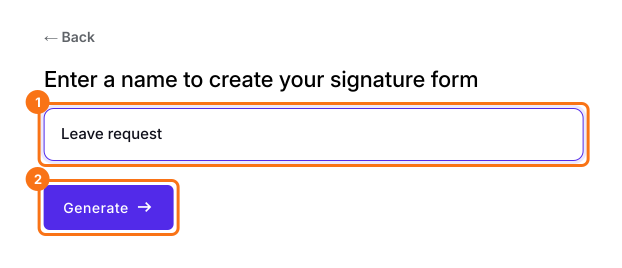
Click on Create your form, click Enter your form name, type Leave request and click Generate. Check the outline and click Proceed.
2. Add the approver as a role
- You land on the EDIT tab, where the Add eSignature dialog says Your signing link is ready. Close it.
- Click the pencil on the Signature workflow card.
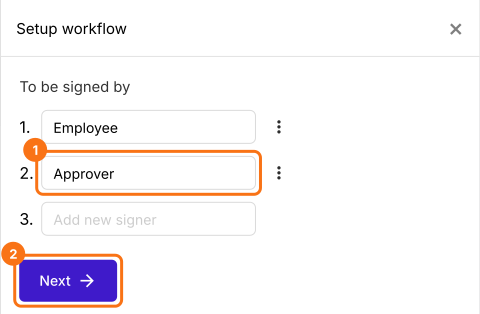
- The AI picks the signers from your form's name, so in Setup workflow, type over them so that they read Employee and Approver, delete any others from their three dots and click Next.
- Close the Your signing link is ready dialog. You type a role here because the manager changes from one employee to the next.
3. Share the link
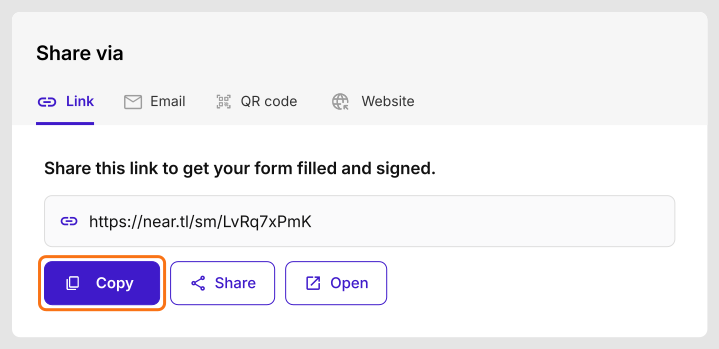
Click SHARE, click Copy and send the link to your staff.
4. They enter who approves
After signing the leave request and clicking SUBMIT, the employee sees Enter the approver's email. They type their manager's email and click Proceed.

5. Their manager gets the request
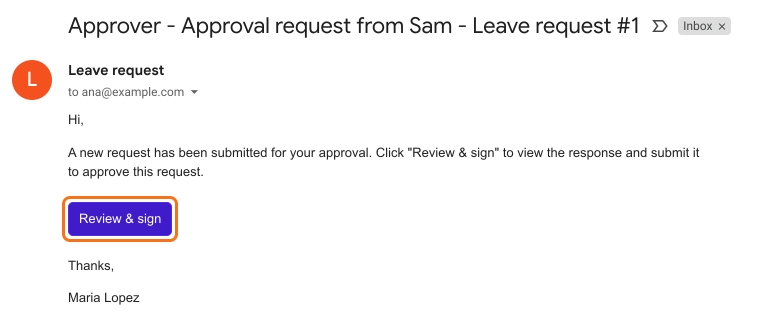
The manager gets this email and clicks Review & sign. The answers aren't in the email. They read them on the form, sign and click SUBMIT.
Summary
When requests from one form have to go to a different approver each time, Google Forms can't route them and a form per approver is hard to keep up to date. With Formesign, you share one link, the person filling it in enters their approver's email after signing and that approver gets the request to sign. Create your form and complete the steps above.
Last updated: