How to find a customer's details at the counter?
"when I enter their phone number, the form auto populates other info like their name"- Google Docs Editors Community
At a counter with regulars, such as a canteen, a cafe or a food pantry, the same people give their name, phone and email for every order, and someone types it all in while the line waits. A Google Form starts blank every time. A pre-filled link only works for one person, and Google Forms can't look anyone up as you type. Neartail's POS form, the counter version of your order form, has a customer search. Click the Name box, type part of a name, email or phone number and click the customer, and their details go into the order. Someone new is added once, the first time they order.
Let's start. Create your canteen form and follow the steps below.
1. Open your POS form
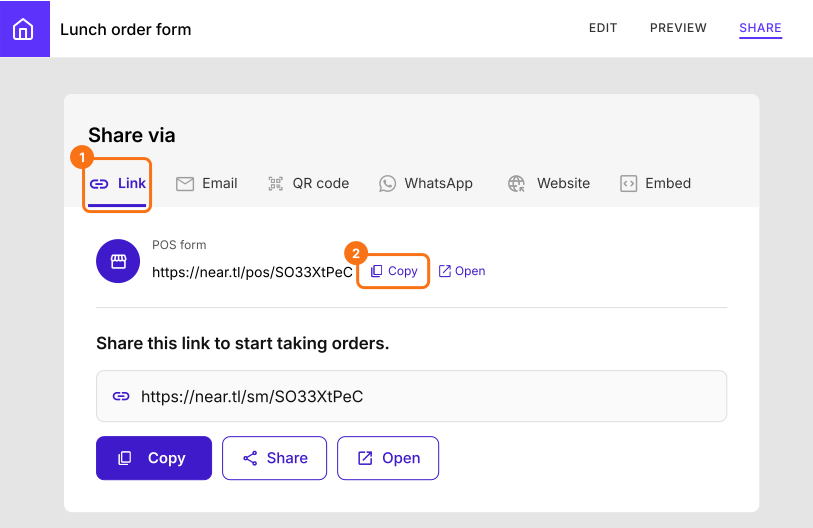
Click Create a canteen form and sign in. Check your form's title, language and currency and click Proceed. You land on the form's Edit tab. If it asks "Do you want to preview this form?", click No. In your form, click SHARE, then click Link. Under POS form, click Copy and open the link at the counter. When it says "To proceed, you need to be logged in.", click Login.
2. Click the Name box
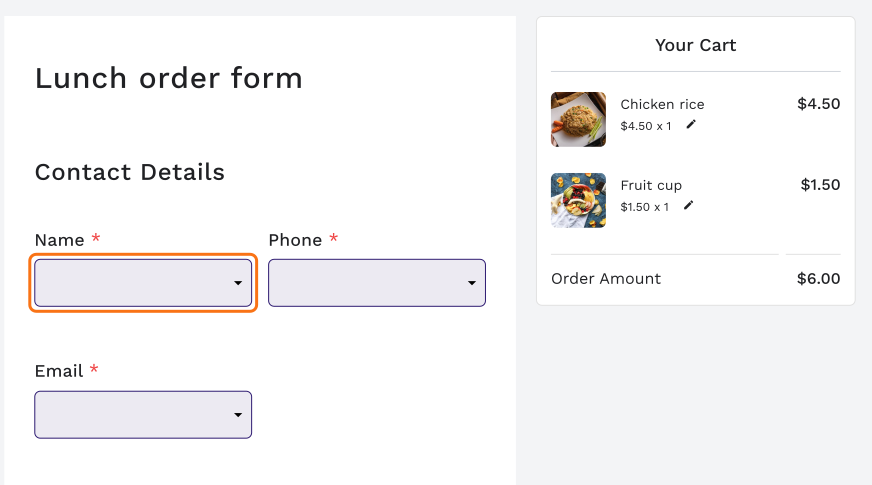
Click the cart icon on the items the customer wants, then click Name under Contact Details. The Phone and Email boxes work the same way.
3. Add someone new
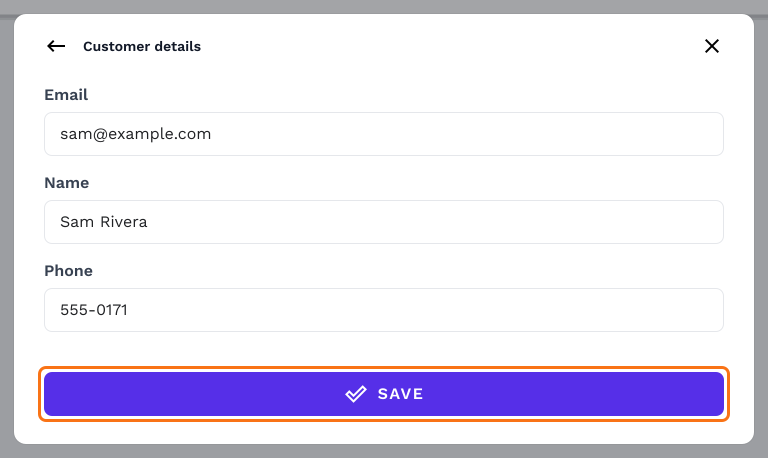
Customer details opens. First order from this person? Click Add new customer, type their email, name and phone and click SAVE.
4. Search and click your regular
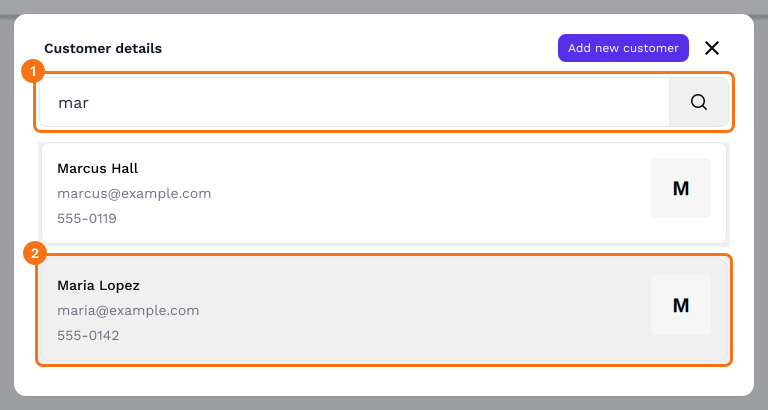
Next time they come, type a name, email or phone number in Customer details, then click the customer.
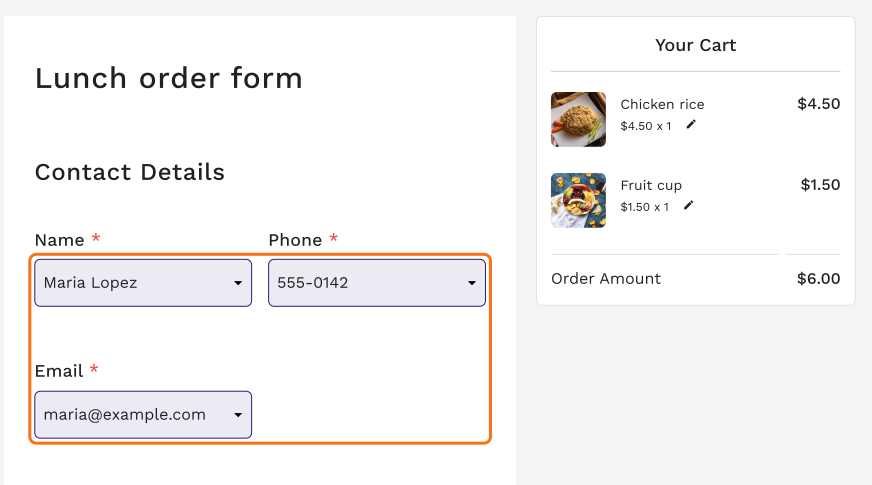
5. Their details fill in
The name, phone and email go into the order for you, so you can submit it and serve the next person.
Summary
When the same customers come back, typing their details into every order slows the line, and a blank Google Form can't look anyone up. With Neartail's POS form, you search for a customer by name, email or phone, click them and their details fill in. Someone new is added once. Create your canteen form and complete the steps above.
Last updated: