How to show the response summary for review before submit?

"Can I check the answers I submitted in Google Forms?"- Quora
People submit a Google Form and only then wonder what they sent. For example, you take membership applications and a wrong date or a misspelled name means going back and forth with the applicant. Google Forms can't show the answers for review before submit. You can add response validation and let people edit later, but that means sending them a copy and leaving their answers open to changes at any time. The Formesign - Signature for Google Docs addon shows a summary of the answers on a screen before submit. Each applicant checks it and clicks Agree, so a wrong date is caught before it reaches you.
Below is what Google Forms can do on its own, and how to add a review screen before submit with Formesign.
The workaround in Google Forms
If you are creating your form in Google Forms, you can create rules that users have to follow when they fill out your form. For example, you can mark fields as required so that users don't skip these fields. You can also add response validations to form fields so that the answers meet the specific criteria. For example, you can add a text email validation to ensure that the email address is properly formatted.
How to set rules? You can mark the questions in your form as required or optional. Additionally, you can specify additional rules for question types such as short answer, paragraph and checkboxes question.
- Open your form in Google Forms
- Click on + icon to add a question
- Enter the title
- Select the preferred question type
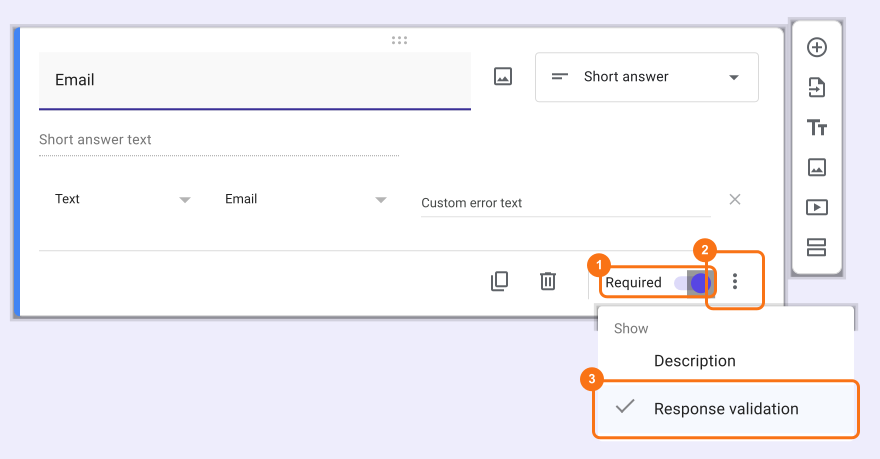
- Enable the Required toggle button to mark it as mandatory
- Click on the ⫶ More icon next to the Required toggle button
- click Response validation to set the relevant rules
With the ability to set rules, you can ensure that there are no incomplete or incorrect submissions. However, this does not guarantee that the information is accurate.
When you are creating an application form or a membership form, you want the applicants to provide accurate information. You can add an "I agree" checkboxes question that allows the users to consent that they have reviewed their responses and that it is accurate. If it is a single page form, users can scroll to review the responses before they submit the form. If it is a multi-page form, it makes it tedious for the users to review their responses.
By default, respondents cannot make changes to their responses once they have submitted the form. You can enable the "Allow response editing" option and also set up the "Send responders a copy of their response" option in Google Forms.
- Open your form in Google Forms
- Click Settings
- Click Responses
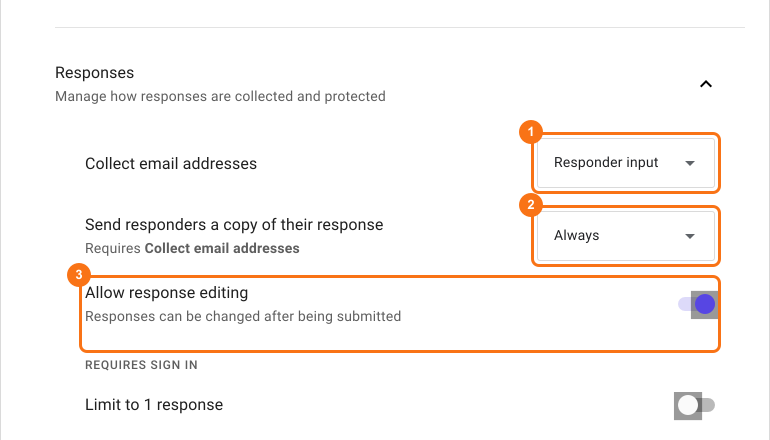
- Select "Responder input" for the "Collect email addresses" option
- Select "Always" for the "Send responders a copy of their response" option
- Enable "Allow response editing" option
When the user submits the form, they will receive a confirmation with a copy of their response along with the edit response button. This will allow users to review their responses and make edits if required. It is important to note that the users will be able to make edits to their responses anytime.
The workaround only allows you to reduce mistakes and provides an option to correct them if required. To show the response summary for review before submit, use Formesign:
Review before submit
- Install the Formesign - Signature for Google Docs addon from Google Workspace marketplace
- Open your form in Google Forms
- Click on the addon icon
- Click Formesign - Signature for Google Docs
- Click More options ...
- Click Proceed if the addon asks to modify the form
- Click Share in the Share this with users row
- Click on "Edit" tab
- Click on the Submit setting gear icon in the After page row at the end of the form
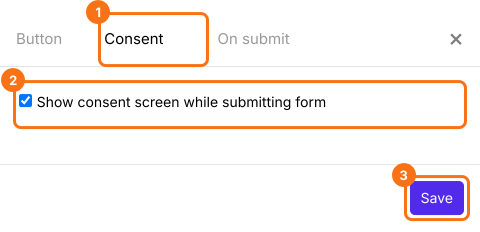
- Click Consent
- Check the show consent screen option and click Save to display the response summary in the consent screen shown before submit
- Click Preview to test the form
When the user fills the form and clicks on the submit button, the consent screen shows the form's title and each answered field with its answer. They click on the Agree button to submit the response or click Close.
Summary
Google Forms doesn't let people review their answers before submit, so mistakes reach you and need fixing later. With Formesign, you show the response summary in a consent screen before submit and each person checks it and clicks on the Agree button. Open your form in Google Forms and complete the steps above. If you have any questions, write to support.
Last updated: