How to add a quick navigation menu for the category pages?
Google Forms can split a long product list into pages, but it gives your customers no way to jump between them. Someone who only wants one category clicks Next through every page before it, and Back to change their mind, and some give up halfway. Branching to a section only works from an answer, not from a menu. Neartail adds a quick navigation menu to your Google Form: you choose which pages it lists, and customers open it from beside the Next button and go straight to the category they want. Whatever they pick on any page adds up to one total at the end.
Create your order form and follow the steps below.
How to add a category page to the quick navigation menu?
- On the page that opens, click Enter your form name, type your form's name and click Generate.
- Check the outline it suggests and click Proceed. Your form opens on the Edit tab.

- If your products are all on one page, click on the last product of your first category, then click Add page in the toolbar on the right. Everything below it moves to a new page
- Enter the name of the next category in the Page title box, in place of Untitled Section. Your menu shows this name and your form's title for the first page
- Do the same for each category
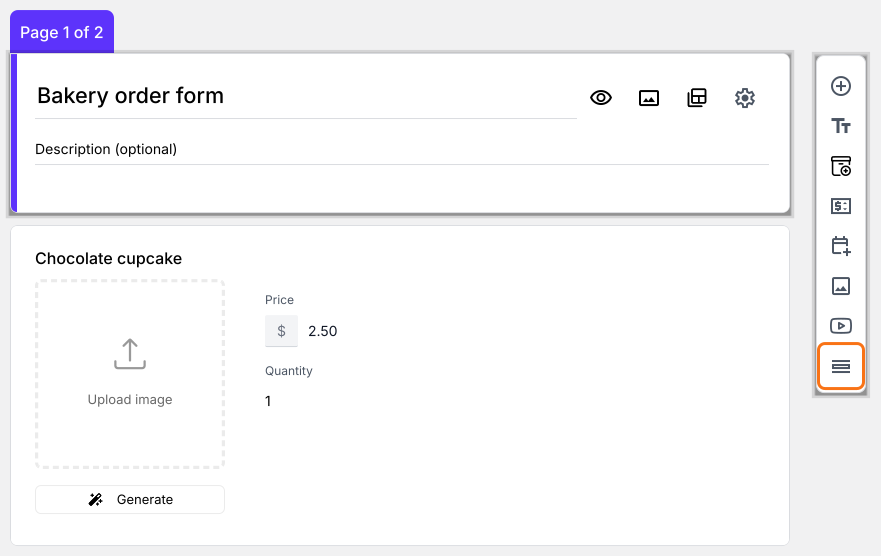
- Click on the Configure key fields icon next to After page 1

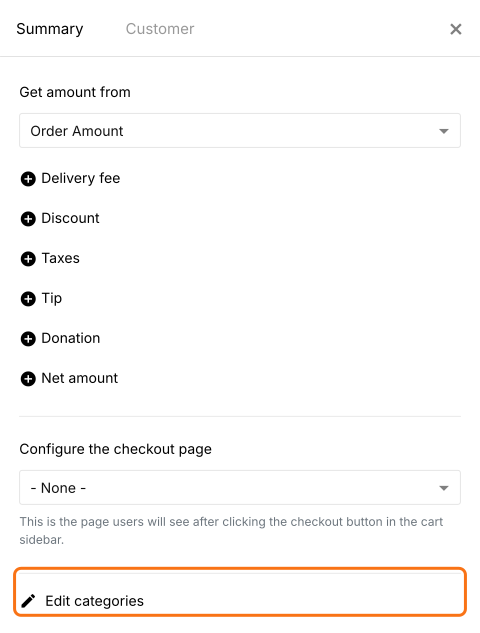
- Click Edit categories
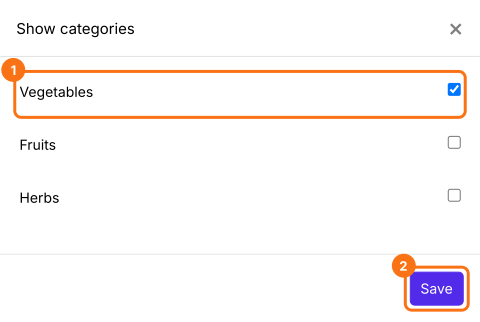
- Tick each category page to be added to the navigation menu and click Save
On your form, a quick navigation icon appears beside the Next or Submit button.
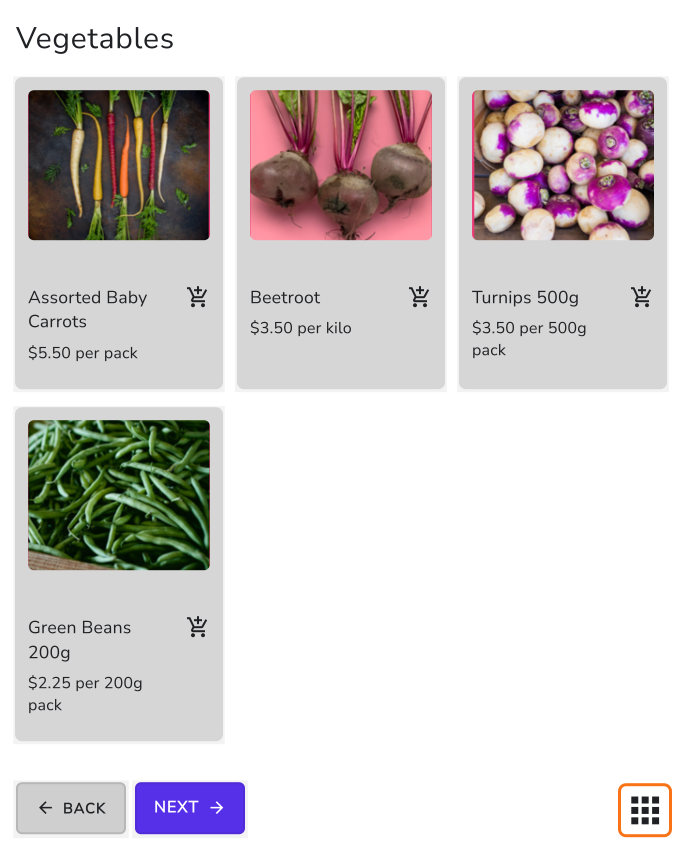
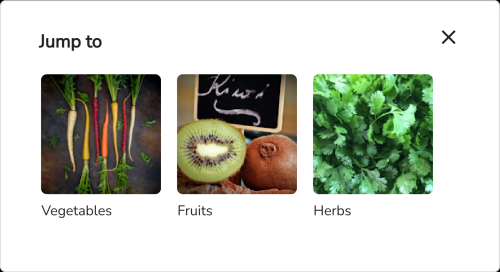
When your customers click it, they see a Jump to list of your category pages. One click takes them to the page.
Summary
When products sit on several pages, a Google Form makes customers page through them in order. With Neartail, you add your category pages to a quick navigation menu and customers jump straight to the one they want. Create your order form and complete the steps above.
Last updated: