How to allow users to enter the donation amount in the payment form?
"I want the customer to fill out an donation form of any amount."- Google Docs Editors Community
When you raise funds with a Google Form, each donor wants to give a different amount, and 30 people on Google's forum have asked how to take a donation of any amount. Google Forms can ask how much they'd like to give, but it can't ask them to pay what they typed. So you send a payment link separately and match each donation to a response by hand. With Neartail, donors type the amount in your form and pay it when they submit. The form carries your branding instead of Google's, so donors can see who they're giving to.
Let's start. Create your form and follow the steps below.
Set up payments
- On the page that opens, click Enter your form name, type a name and click Generate.
- Check the outline it suggests and click Proceed. Your form opens on the Edit tab.

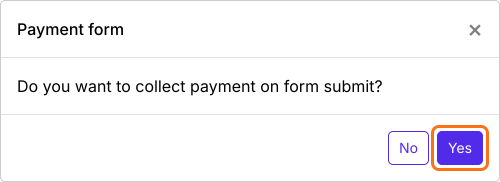
- When it asks "Do you want to collect payment on form submit?", click Yes.
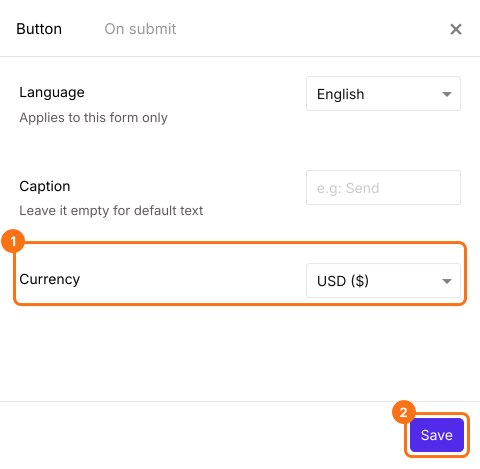
- If PayPal isn't under Manual payments, your form is in a currency PayPal doesn't take. Close the Payments panel, click the gear icon in the After payment row, the last row above the Submit button, select the currency you charge in and click Save. Then click Edit in the Payments row.
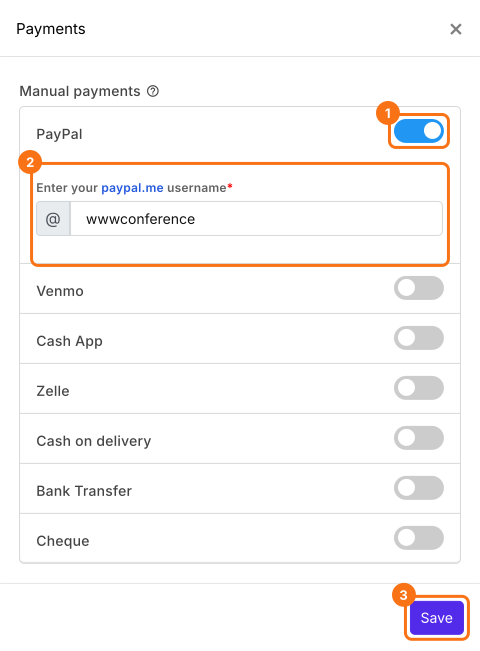
- Under Manual payments, turn on PayPal, enter your paypal.me username and click Save.
Add the Donation field
A Donation field lets each donor type what they give and adds it to the amount they pay.
- Delete the product cards you don't need with the delete icon at the bottom of each card.
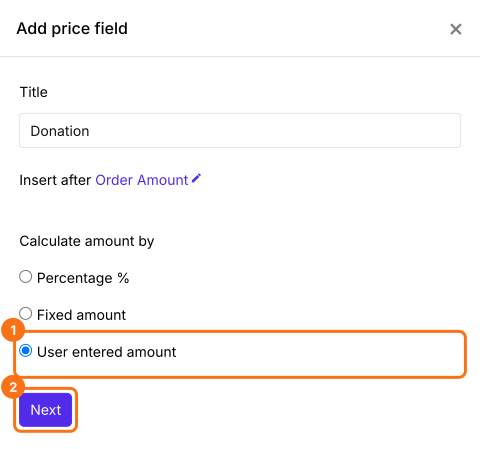
- Click the Add price field icon, select Donation and click Next. Select User entered amount, click Next and click Create. Click Save in the panel that opens.
- Click Preview and fill in the form to try it.

Donors type the amount they want to give in the Donation field before they submit, and that is the amount they pay. To check each payment, read How to see who has paid in Google Forms?
Summary
When each donor gives a different amount, a Google Form can ask how much but can't ask them to pay it. With Neartail, you add a Donation field where donors type the amount and they pay it when they submit the form. Create your form and complete the steps above. If you have any questions, write to support.
Last updated: