How to get paid on your WhatsApp order form?
"use UPI for e-commerce website to save payment gateway charges"- Quora
A payment gateway takes a cut of every sale, and your customers would rather pay by UPI anyway. If you take orders on WhatsApp, the hard part is the amount: a plain Google Form can't add up an order or send it to your chat, so you work out each total before you can ask for the money. With Neartail, each order reaches your WhatsApp with its Order Amount. You reply with your UPI ID, the customer pays from their UPI app and tells you in the same chat, and no gateway takes a charge. On the Kanban board in ORDERS, you move each order to Paid once the money is in.
Let's start. Create your order form and follow the steps below.
1. Create your order form
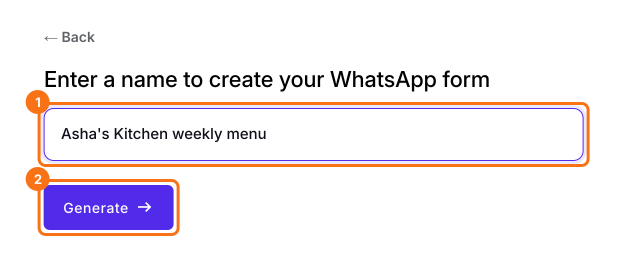
On the page that opens, click Enter your form name, type its name and click Generate. Check the outline it suggests and click Proceed. If it asks "Do you want to preview this form?", click No. Click each product and type its price. If you have a Google Form, click Import your Google Forms instead, paste its link and click Add to WhatsApp. Select your currency and click Continue. When it says "Your order form is ready", click Preview your form, then Edit form.
2. Send orders to your WhatsApp
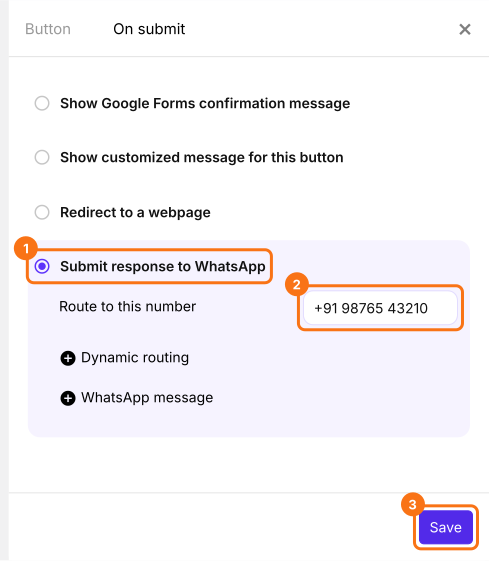
Your form does not send orders to WhatsApp until you do this. At the end of the EDIT tab, click the gear on the last After row, above Submit. Open On submit, choose Submit response to WhatsApp, type your number under Route to this number and click Save.
3. The order comes to your chat
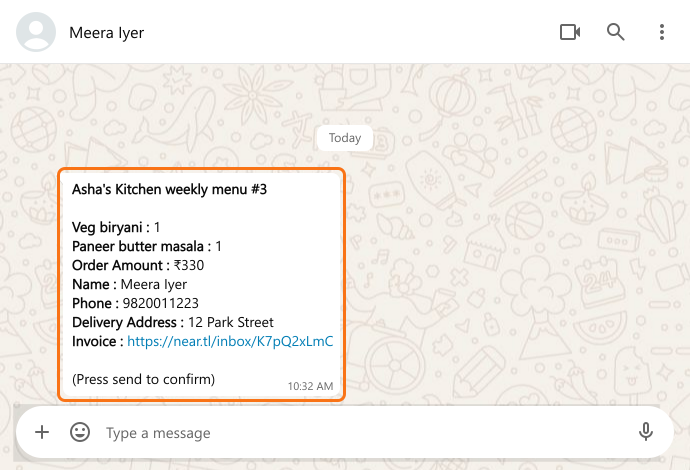
When a customer submits your form on a computer, they scan a QR code or click the link below it. WhatsApp opens with their order written out. They press send and it reaches your chat with the total.
4. Reply with your UPI ID
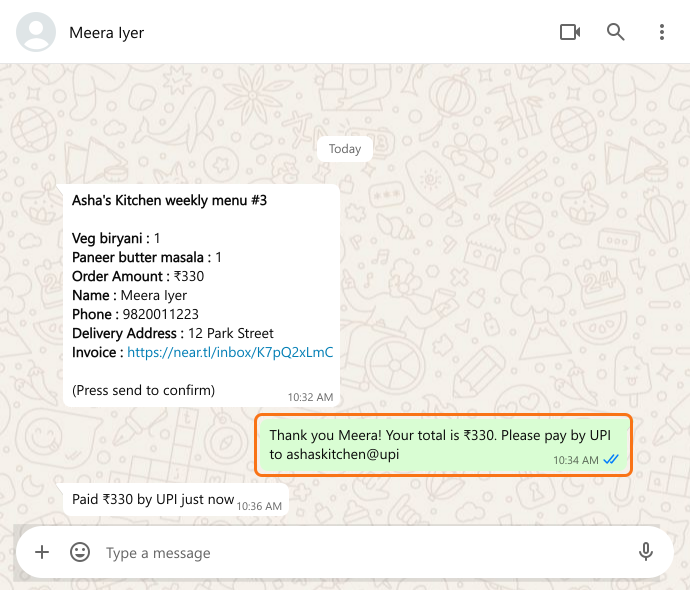
Reply with your UPI ID and the amount. The customer pays from their UPI app and tells you in the same chat.
5. Keep track of who paid
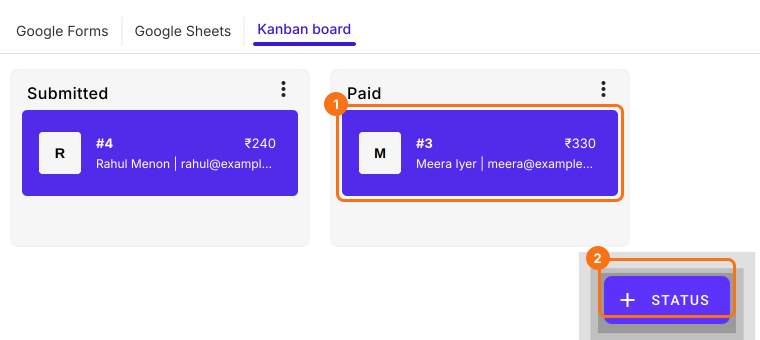
On the Kanban board in your ORDERS tab, click + STATUS and add Paid. Check the money in your UPI app, then drag the order to Paid.
Summary
A payment gateway charges on every sale, and a plain Google Form can't add up an order so you know what to ask for. With Neartail, each order arrives in your WhatsApp with its total, you reply with your UPI ID and you mark the order paid on your Kanban board. Create your form and complete the steps above. If you have any questions, write to support.
Last updated: