How to send automatic signature reminders?
"I can't figure out how to send a "reminder" to ask him to sign"- Google Docs Editors Community
This is a common question: 192 people on Google's forum have asked how to remind someone who hasn't signed. With purchase requests in Google Forms, the approval email can be deleted or sink in an inbox, and nothing tells you. Google Forms can't send a reminder, so you keep a list of who has what and write each follow-up yourself. In Formesign you set a reminder for an approver once, in hours. If they haven't signed by then, they get a new email with the signing link, even if they deleted the first one.
Let's start. Create your form and follow the steps below.
1. Open the signer list
- Click on Create your form, click Enter your form name, type Purchase request and click Generate.
- Check the outline and click Proceed.
- You land on the EDIT tab, where the Add eSignature dialog says Your signing link is ready. Close it.
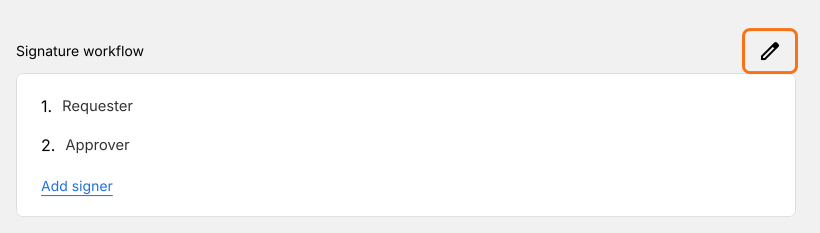
- Click the pencil on the Signature workflow card.
- The AI picks the signers from your form's name, so in Setup workflow, type over them so that they read Requester and Approver, delete any others from their three dots and click Next.
- Close the Your signing link is ready dialog.
- Click the pencil again.
2. Turn on Set reminder
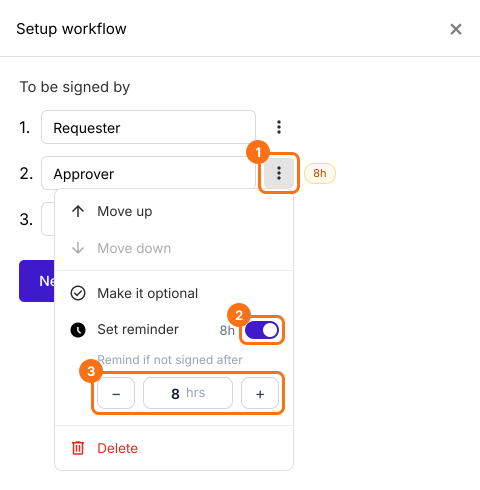
Click the three dots beside Approver and switch on Set reminder. Under Remind if not signed after, use − and + to set the hours. Click Next to save it and close the Your signing link is ready dialog.
3. Share the link
Click SHARE, click Copy and send the link to your staff.
4. The approver gets the reminder
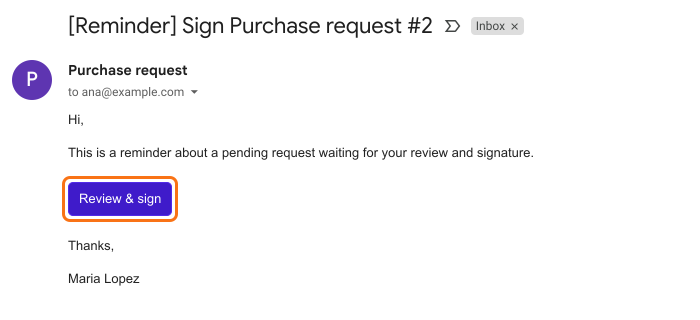
If they haven't signed in time, they get this email with a new Review & sign button, even if they deleted the first one. The hours count from when the requester signs.
5. Send it again if you need to
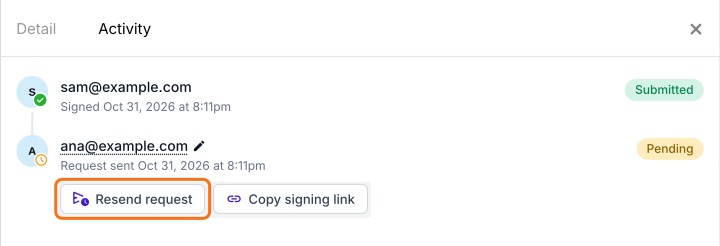
Each signer gets one reminder for each request. To send another, open SIGNED PDF, click the three dots on the card, choose Activity and click Resend request.
Summary
When a signature request goes out by email, it can be deleted or missed and nothing follows up unless you do. With Formesign, you set a reminder once and anyone who hasn't signed in time gets a new email with the link. You can also resend it from Activity. Create your form and complete the steps above.
Last updated: