How to add a fixed shipping fee regardless of the order amount or delivery zones?
"How can I add shipping cost and pounds"- Google Docs Editors Community
If you charge one delivery fee on every order, a Google Form gives you nowhere to put it: it has no total to add the fee to. So you add it yourself once the order arrives and send the customer the final amount separately, and some don't see what they owe until you message them. With Neartail, you add a Delivery Fee with a fixed amount to your Google Form. The customer sees the order amount, the fee and the amount to pay on the form before they order, and the order reaches you with the fee already added.
Let's start. Create your order form and follow the steps below.
How to setup a fixed shipping fee?
- On the page that opens, click Enter your form name, type your form's name and click Generate.
- Check the outline it suggests and click Proceed. Your form opens on the Edit tab.

Your form comes with products, an Order Amount question that adds up by itself and an Order Quantity question.
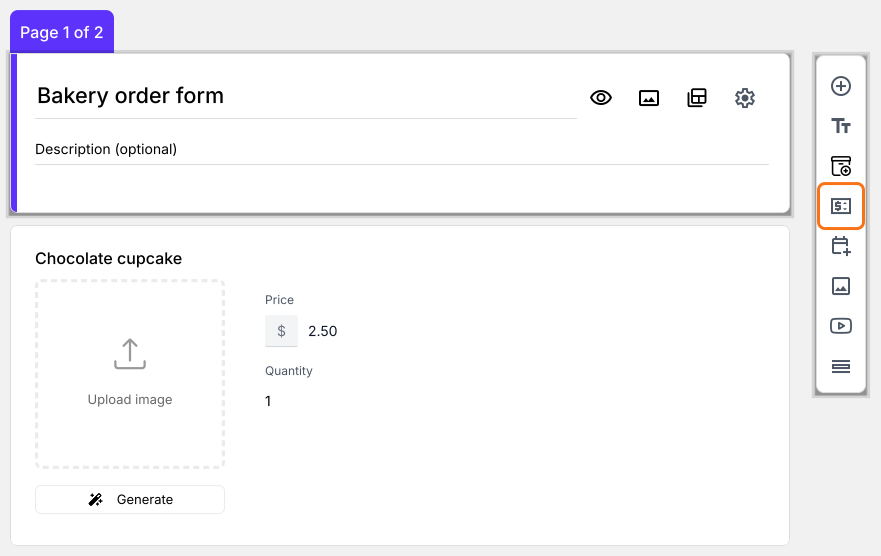
- Click on the Order Quantity question, then click Add price field in the toolbar on the right
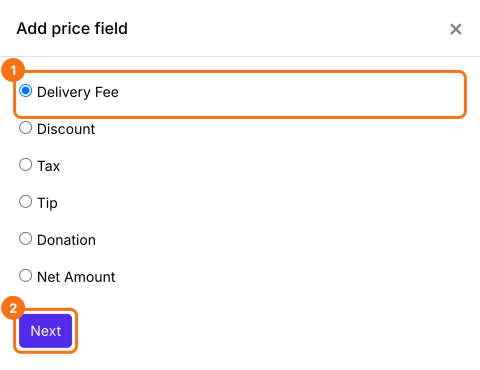
- Select Delivery Fee and click Next
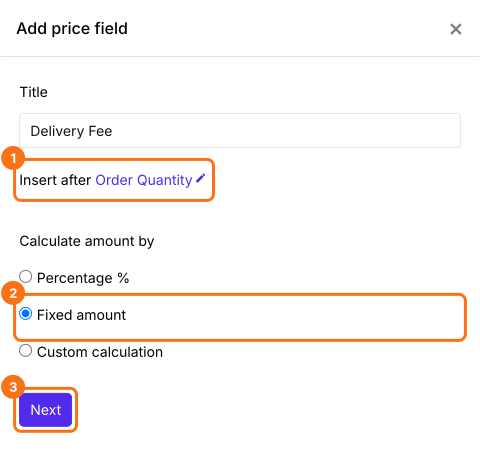
- Select Fixed amount and click Next
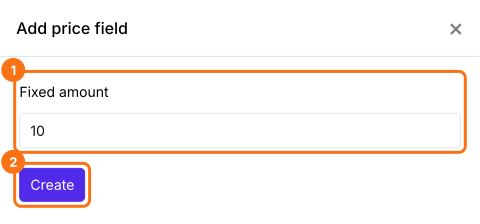
- Enter the fee and click Create. To set a fixed shipping fee of $10, you can enter 10
- Click Save
How to calculate the total amount including the fixed shipping fee?
Add a Net Amount price field. It adds the Delivery Fee by itself. Your customers pay the Net Amount.
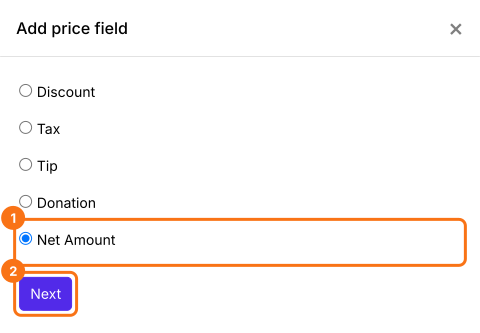
- Click on the Delivery Fee question, then click Add price field. Select Net Amount and click Next
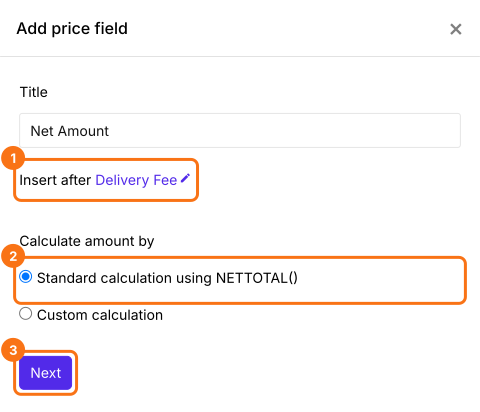
- Select Standard calculation using NETTOTAL() and click Next
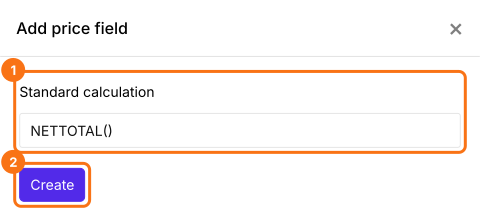
- Click Create
- Click Save
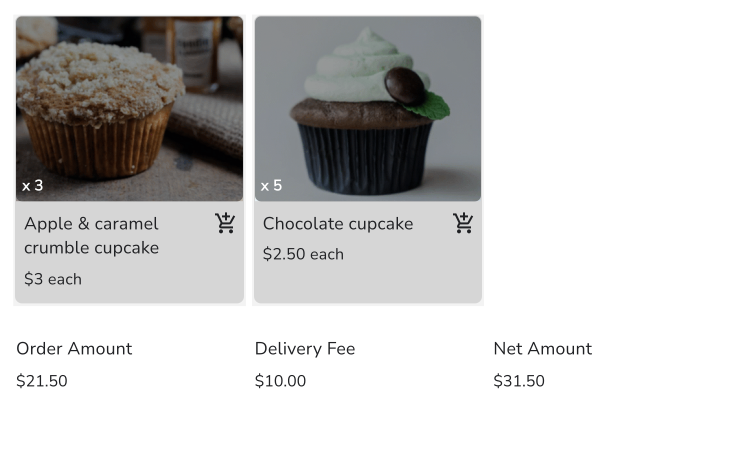
Your customers will see the Order Amount, the Delivery Fee and the Net Amount to be paid in the form before they place the order. Your customers pay the Net Amount.
Summary
A Google Form can't add a delivery fee, because it doesn't add up the order. With Neartail, you add a Delivery Fee with a fixed amount and a Net Amount, and your customers see the fee and the total to pay before they place the order. Create your order form and complete the steps above. If you have any questions, write to support.
Last updated: