How to add coupon code to Google Forms

"How to create coupon codes to an online website store"- Quora

Google Forms can check a coupon code, but it can't take anything off the price. Response validation will turn away a code you haven't listed, yet the form has no total for the code to reduce, so you work out each discount after the order arrives and tell the customer what they owe. Whether it's 20% off a first order or $5 off for a regular, it becomes a sum you do by hand for every response. Neartail gives your Google Form a running total, and a Discount field can read the code: when a customer types a valid one, they see the money come off before they submit. The discount can be a percentage or a fixed amount, and one formula can hold several codes.

Below are three ways to handle a coupon code in Google Forms, and where each one falls short.

3 ways to add a coupon code to Google Forms

  1. Check the code with response validation in Google Forms
  2. Work out the discount in the response Sheet
  3. Take the discount off in the form with Neartail

Option 1: Response validation in Google Forms

Add a Short answer question for the code. Click its three dots, choose Response validation, pick Regular expression and Matches, and type your code, such as WELCOME20. Google Forms turns away any other code.
Where it falls short: the form has no prices or total, so the code takes nothing off. You still work out each discount and tell the customer what they owe.

Option 2: A formula in the response Sheet

Link the form to Google Sheets and add a column that checks the code and works out the discount, for example with IF.
Where it falls short: the customer never sees the discount, because the Sheet only works it out after they submit. The formula also has to reach every new row the form adds.

Option 3: Take the discount off in the form with Neartail

Neartail adds prices and a running total to your form. You list your valid codes on a question and write the discount as a formula, so the customer sees it come off before they submit. These are the steps.

How to configure valid coupon codes?

  • On the page that opens, click Enter your form name, type your form's name and click Generate.
  • Check the outline it suggests and click Proceed. Your form opens on the Edit tab.

The tabs Edit, Preview, Share and Orders, with Edit marked
Your form comes with products, an Order Amount question that adds up by itself and an Order Quantity question.
  • Click on the Order Quantity question, then click Add field in the toolbar on the right
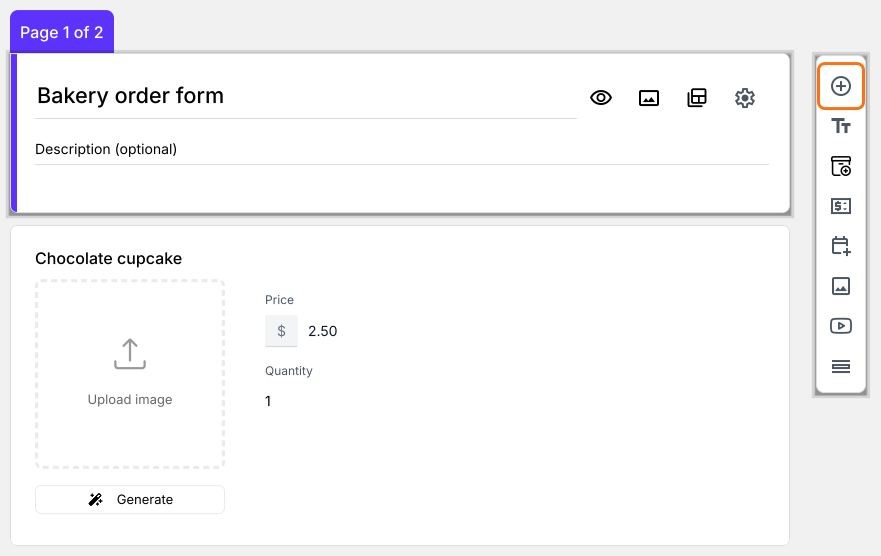
The form in the editor, with the Add field icon marked in the toolbar on the right
  • Enter Apply Coupon as the new question's title
  • Click the ⚙️ icon at the bottom of the question and select the Answer tab
  • Click Configure under Validation. Select Regular expression > Matches and enter the coupon code in the pattern to be matched, such as WELCOME20. For more than one code, enter them like ^(WELCOME20|SAVE10)$. Enter the error message and click Save
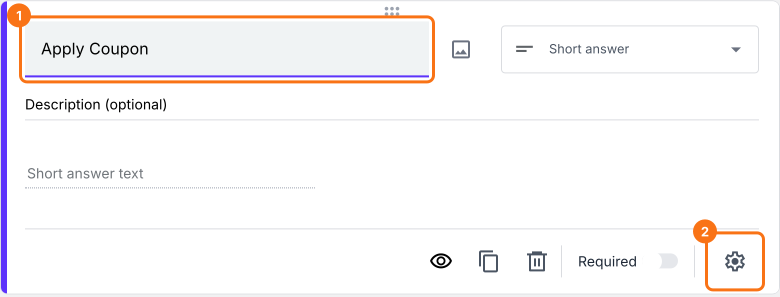
The Apply Coupon question selected in the editor, with its title and the gear at the bottom of its card marked
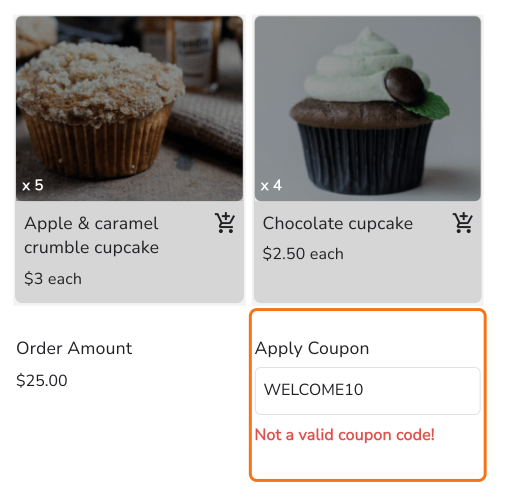
A customer who types a code you haven't listed sees your error message.
The Bakery order form with WELCOME10 in Apply Coupon, which is marked, and the error Not a valid coupon code! below it

How to apply discounts based on coupon codes?

Add a Discount price field, then write the formula that works out the discount.
  • Click on the Apply Coupon question, then click Add price field in the toolbar on the right
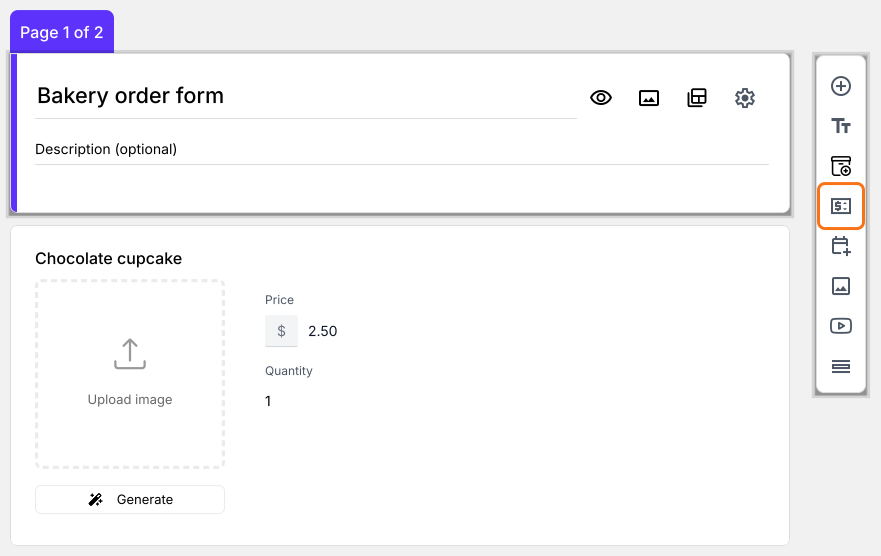
The form in the editor, with the Add price field icon marked in the toolbar on the right
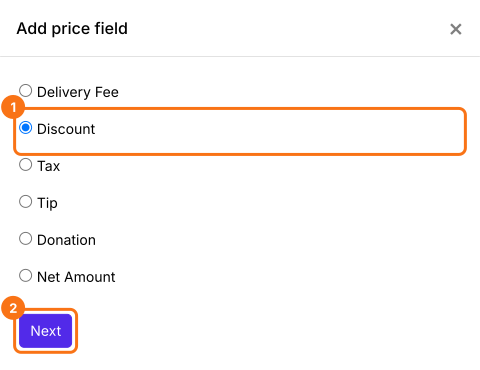
  • Select Discount and click Next
The Add price field list, with Discount selected and Next marked
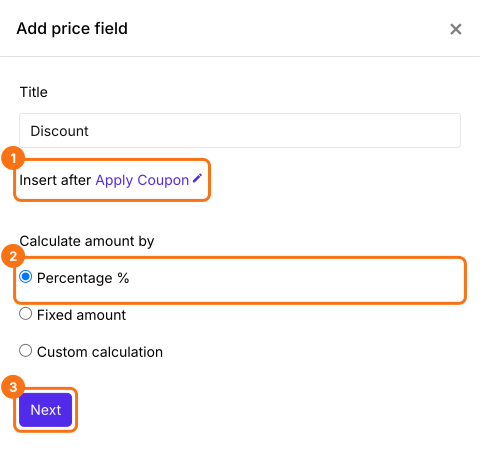
  • Select Percentage % and click Next
The Discount settings with Insert after Apply Coupon and Percentage % selected, marked with Next
  • Enter 20, check that Of says Order Amount and click Create
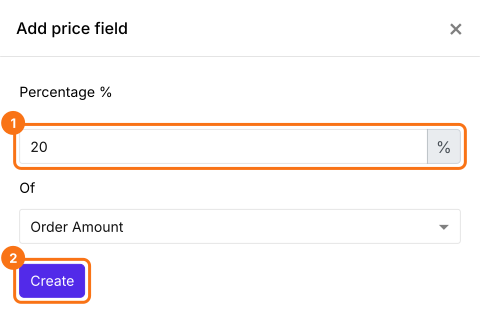
The Percentage box with 20, Of Order Amount and the Create button marked

Use IFS function to apply discounts based on coupon

IFS function evaluates multiple conditions and returns a value that corresponds to the first true condition. The syntax for the IFS function is:
IFS(condition1, value1, [condition2, value2, …])
where
  • condition1 - The first condition to be evaluated.
  • value1 - The returned value if condition1 is TRUE.
  • condition2, value2, … - Additional conditions and values if the first one is evaluated to be false.
If the coupon code is WELCOME20, we will apply a 20% discount by multiplying the order amount by 0.20. Otherwise, zero discount.
IFS(Apply Coupon == "WELCOME20", 0.20 * Order Amount, true, 0)
  • In Field settings, select the Answer tab. The Calculate option already holds the Percentage formula, so replace it with the formula as shown below. Type @Apply to pick Apply Coupon and @Order Am to pick Order Amount, which shows as Order Amou.. in the box. Click Save
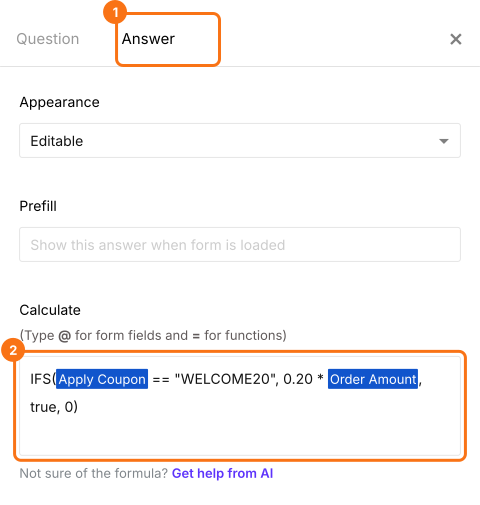
The Answer tab of the field settings with the IFS formula for WELCOME20 in the Calculate box, with the Answer tab and the box marked

Fixed amount discount

Instead of applying a percentage discount for the coupon code, you can offer a fixed dollar amount discount. Let's say you want to offer a $5 discount for WELCOME20 coupon code. So, if the coupon code entered by the user is WELCOME20, the discount is 5. Write this in the Calculate option in place of the other formula.
IFS(Apply Coupon == "WELCOME20", 5, true, 0)

How to show the amount to be paid?

Add a Net Amount price field. It takes the Discount off by itself. Your customers pay the Net Amount.
  • Click on the Discount question, then click Add price field. Select Net Amount and click Next
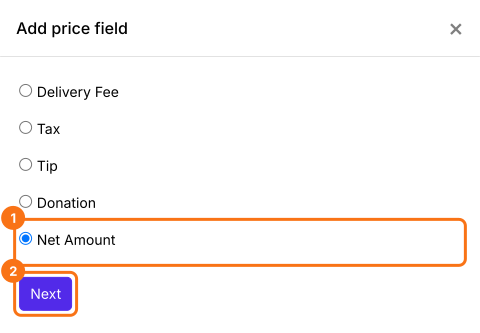
The Add price field list, with Net Amount selected and Next marked
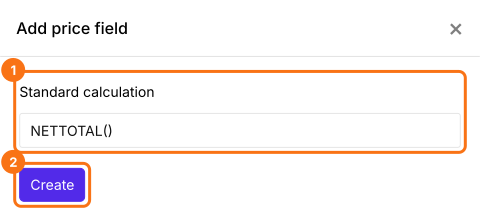
  • Select Standard calculation using NETTOTAL() and click Next
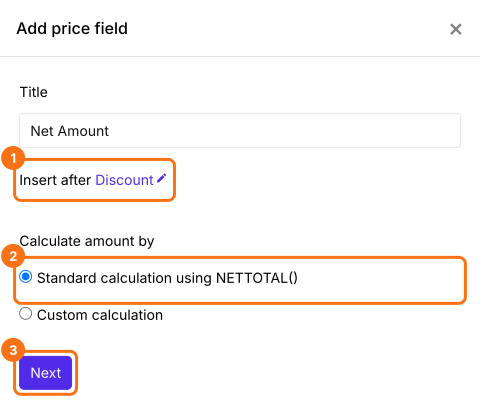
The Net Amount settings with Insert after Discount and Standard calculation using NETTOTAL() selected, marked with Next
  • Click Create
  • Click Save
The Standard calculation box with NETTOTAL() and the Create button marked
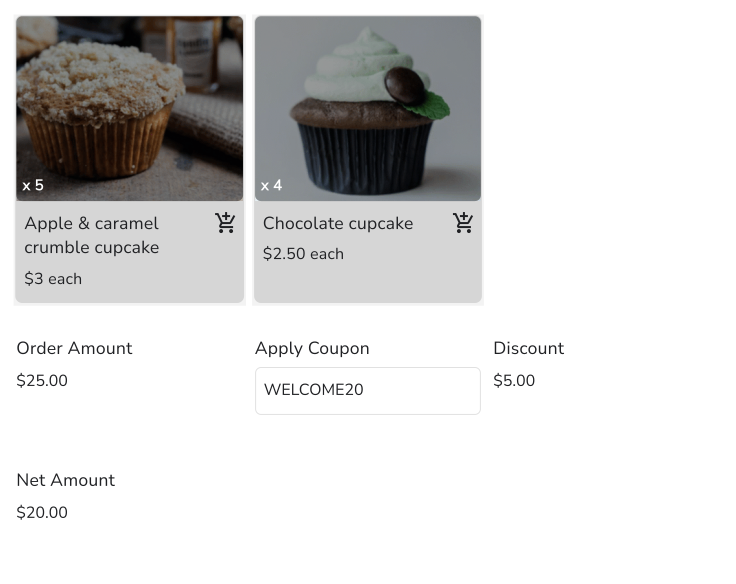
When a customer types WELCOME20, the Discount and the Net Amount change right away. Without the code, the Discount stays at 0. Your customers pay the Net Amount.
The Bakery order form with two cupcakes ordered, an Order Amount of $25.00, WELCOME20 in Apply Coupon, a Discount of $5.00 and a Net Amount of $20.00

Summary

Google Forms can check a coupon code, but it has no total to take the discount off, so every discount is worked out by hand after the order arrives. Neartail adds a total to the form and a Discount field that reads the code, so the customer sees a percentage or a fixed amount come off before they submit. Create your order form and complete the steps above. If you have any questions, write to support.

Last updated: