How to calculate shipping fees based on delivery zones?
"We charge a diagnostic fee depending on the customer's vicinity from the closest shop."- Google Docs Editors Community
When the delivery fee depends on where the customer lives, a Google Form can ask for the area but can't charge for it. Every answer to "Choose the delivery area" costs the same as far as the form knows, so you read the area on each order, look up the fee and add it yourself. In Neartail, the FEE function gives each delivery zone its own fee. The customer picks their area on your Google Form and sees the fee and the amount to pay change before they submit.
Create your order form and follow the steps below.
How to calculate the shipping fee?
- On the page that opens, click Enter your form name, type your form's name and click Generate.
- Check the outline it suggests and click Proceed. Your form opens on the Edit tab.

Your form comes with products, an Order Amount question that adds up by itself and an Order Quantity question.
Add a multiple choice question for the delivery zones and a Delivery Fee that charges for each one.
- Click on the Order Quantity question, then click Add field in the toolbar on the right
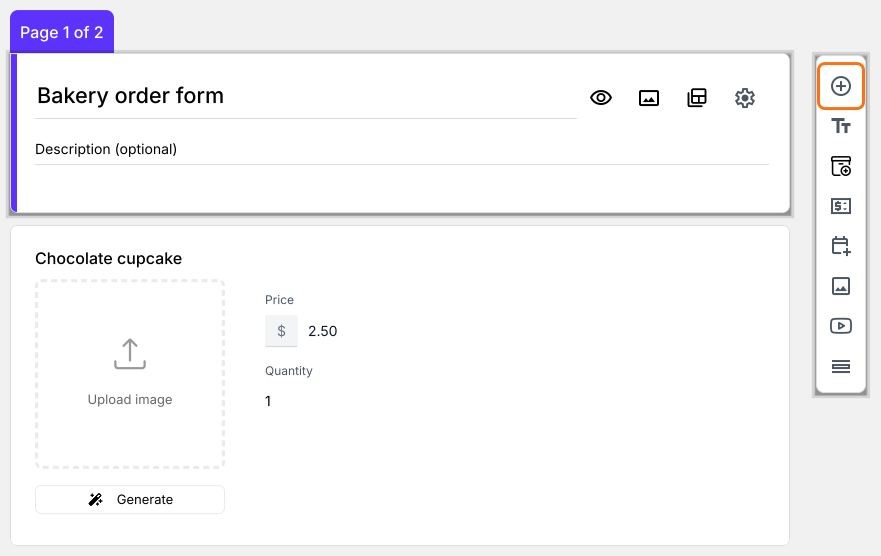
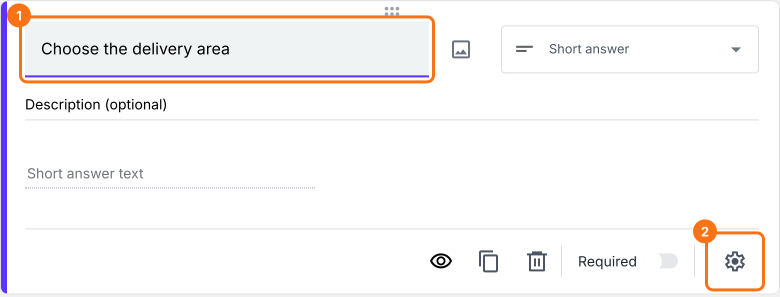
- Enter Choose the delivery area as the new question's title
- Change the question type to Multiple choice in its list. Type the first delivery zone in the Option 1 box, then click Add Option for each of the others, because pressing Enter does not add one
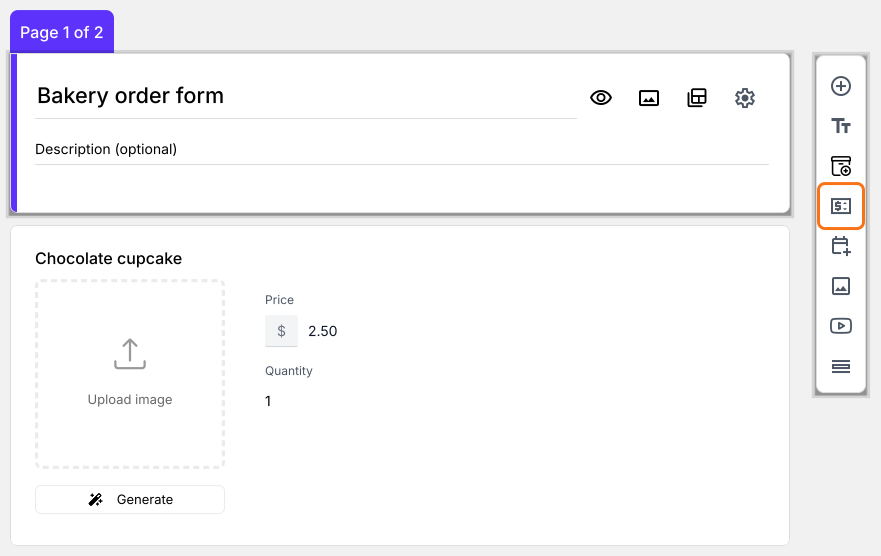
- Click on the Choose the delivery area question, then click Add price field in the toolbar on the right
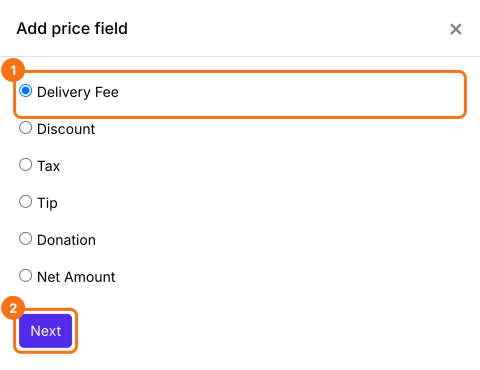
- Select Delivery Fee and click Next
- Select Fixed amount and click Next
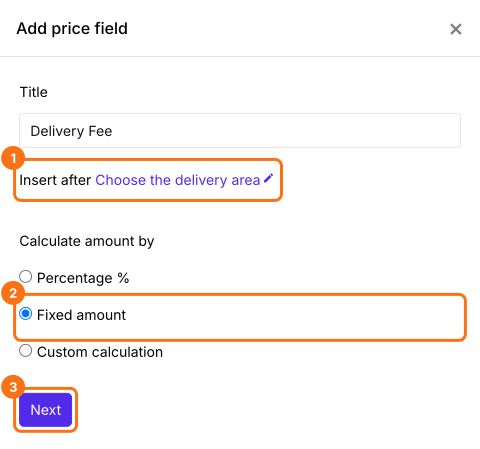
- Click Create. You will replace this amount with the formula in the next step
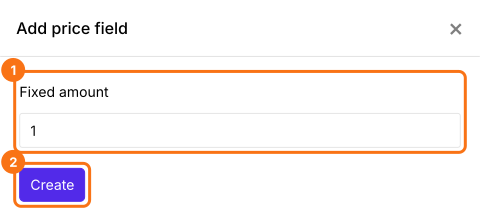
Use FEE function to calculate the shipping costs
FEE function assigns fees for each answer choice in a multiple choice, dropdown or checkbox question. The syntax for the fee function is:
FEE(currency, question, value1, [value2, …])
where
- currency - The currency symbol to be displayed
- question - The entry#id of the question. Type @ and select the required question from the list.
- value1, value2 … valuen - Fees for the first, second … nth answer choice
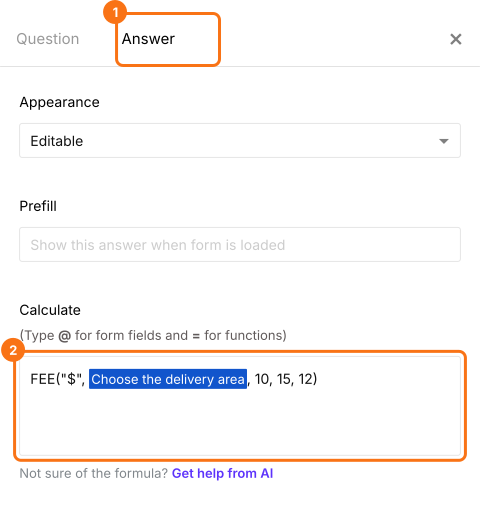
Let's say there are three delivery zones -- Zone 1, Zone 2, Zone 3 -- and the fees for the three delivery zones are $10, $15 and $12 respectively. The FEE formula for calculating the delivery fees based on the zone selected by the user is: FEE("$",Choose the delivery area, 10, 15, 12)
- In Field settings, select the Answer tab. Write the formula in the Calculate option as shown below and click Save. Use your own currency symbol in place of $ or the form will mix the two
How to add the shipping costs and order amount?
Add a Net Amount price field. It adds the Delivery Fee to the Order Amount by itself. Your customers pay the Net Amount.
- Click on the Delivery Fee question, then click Add price field. Select Net Amount and click Next
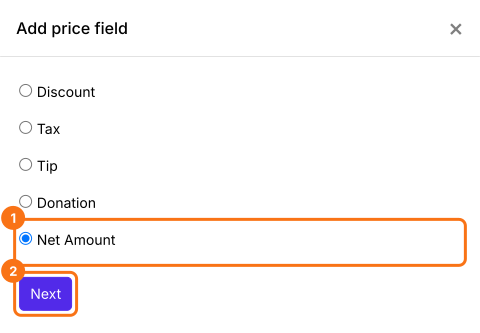
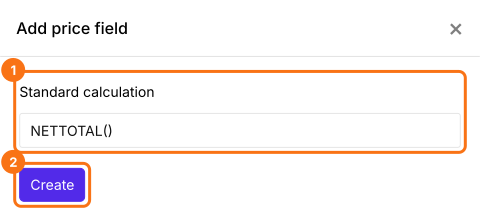
- Select Standard calculation using NETTOTAL() and click Next
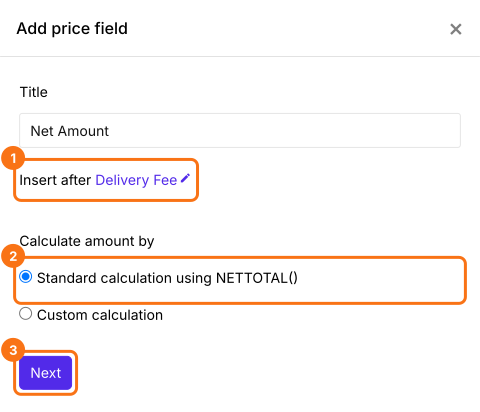
- Click Create
- Click Save
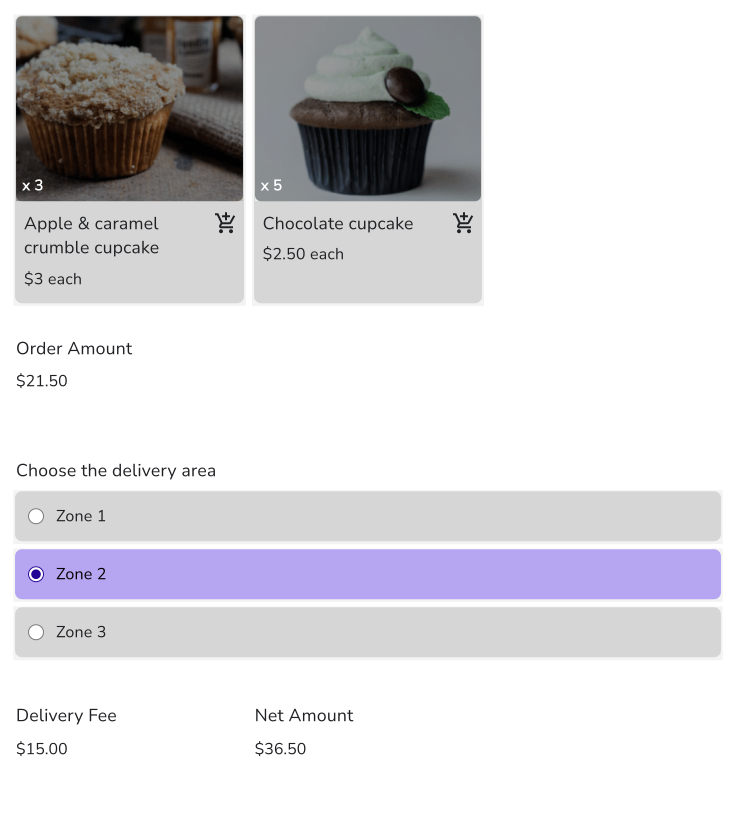
When your customers choose their area, the Delivery Fee and the Net Amount change on the form. Your customers pay the Net Amount.
Summary
A Google Form can ask for a delivery area but can't charge a different fee for each one. With Neartail, the FEE function sets a fee for each zone, and the form adds it to the order amount as soon as the customer picks their area. Create your order form and complete the steps above. If you have any questions, write to support.
Last updated: