How to calculate your free shipping threshold
"the logic I require is order $75 and above to have FREE delivery"- Support forum
Free delivery above a set amount only works if the fee can see the order total, and a Google Form never adds one up. So the form can't drop the fee by itself: you check each order against your threshold and correct the amount afterwards. Neartail gives your Google Form an order total, and the IFS function lets the Delivery Fee follow your rule, such as nothing over $500 and $25 below it. Customers see the fee change as they add items, which tells them how close they are to free delivery.
Let's start. Create your order form and follow the steps below.
How to calculate shipping fees based on order amount?
- On the page that opens, click Enter your form name, type your form's name and click Generate.
- Check the outline it suggests and click Proceed. Your form opens on the Edit tab.

Your form comes with products, an Order Amount question that adds up by itself and an Order Quantity question.
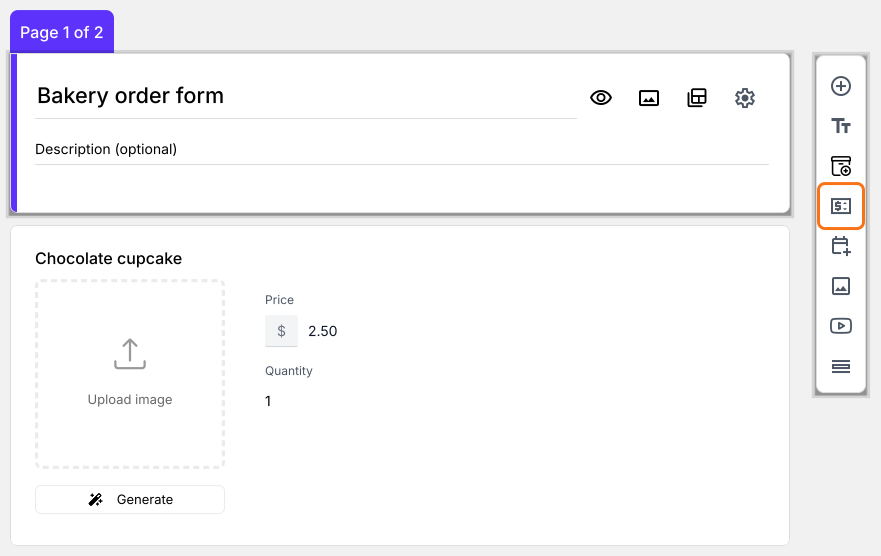
- Click on the Order Quantity question, then click Add price field in the toolbar on the right
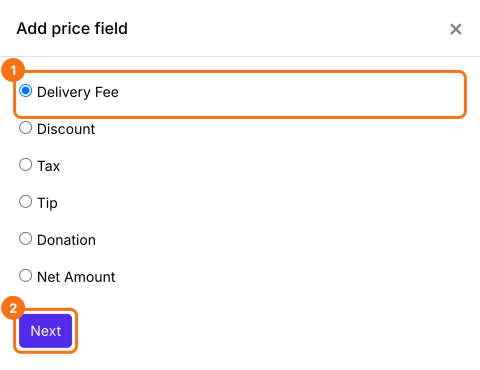
- Select Delivery Fee and click Next
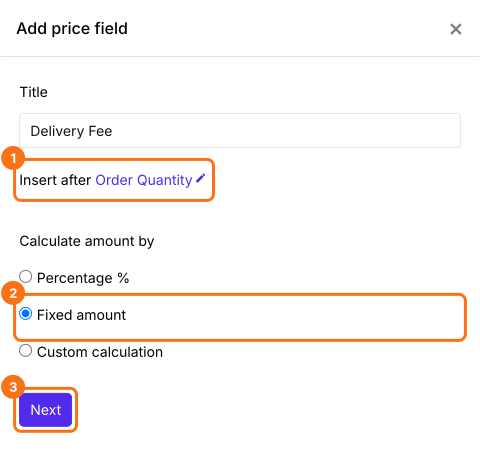
- Select Fixed amount and click Next
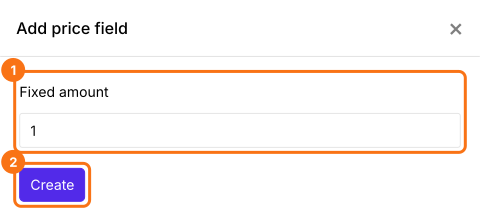
- Click Create. You will replace this amount with the formula in the next step
Use IFS function to set shipping costs based on order amount
IFS function evaluates multiple conditions and returns a value that corresponds to the first true condition. The syntax for the IFS function is:
IFS(condition1, value1, [condition2, value2, …])
where
- condition1 - The first condition to be evaluated.
- value1 - The returned value if condition1 is TRUE.
- condition2, value2, … - Additional conditions and values if the first one is evaluated to be false.
Standard shipping fee
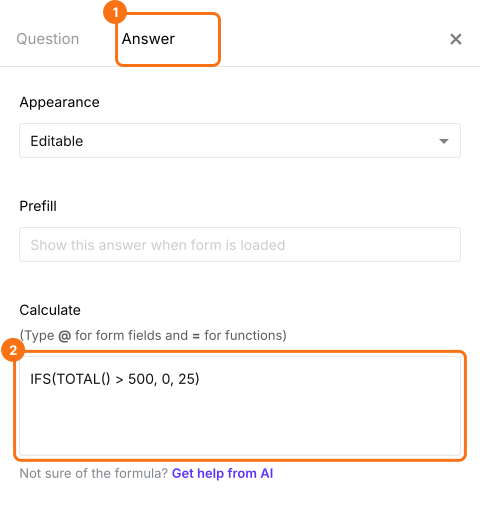
If the order amount is greater than $500, shipping fees will be zero. Otherwise, a standard fee of $25. TOTAL() is the order amount.
IFS(TOTAL() > 500, 0, 25)
Shipping fee based on the delivery zone
Instead of standard shipping fee of $25 for all orders below $500, we can use the FEE function to calculate the shipping fee based on the zone selected by the user. First add the question as in How to calculate shipping fees based on delivery zones?, then type @ to pick it.
IFS(TOTAL() > 500, 0, FEE("$", Choose the delivery zone, 10, 15, 12))
- In Field settings, select the Answer tab and write the formula to calculate the delivery fee based on order amount. Click Save
How to show the amount to be paid?
Add a Net Amount price field. It adds the Delivery Fee to the Order Amount by itself. Your customers pay the Net Amount.
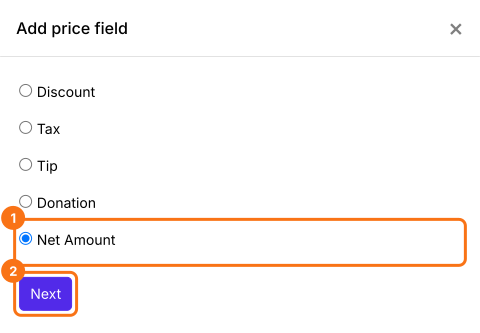
- Click on the Delivery Fee question, then click Add price field. Select Net Amount and click Next
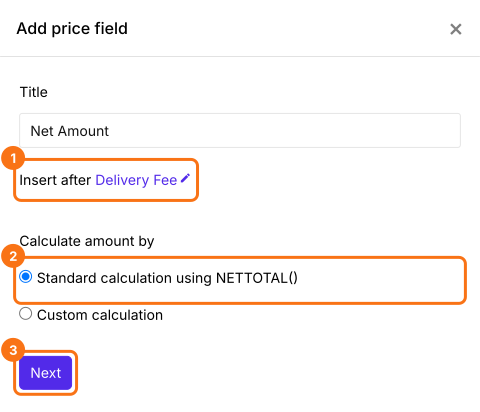
- Select Standard calculation using NETTOTAL() and click Next
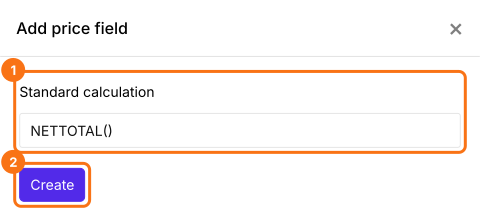
- Click Create
- Click Save
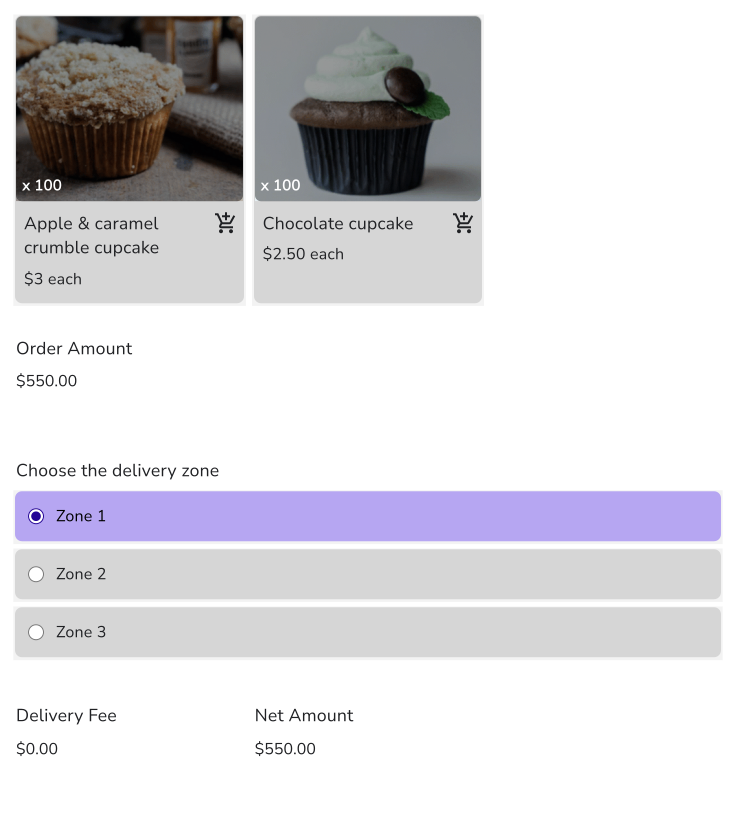
When an order crosses your amount, the Delivery Fee goes to zero on the form. Your customers pay the Net Amount.
Summary
A Google Form can't waive a delivery fee above an order amount, because it doesn't know the total. With Neartail, an IFS formula sets the fee from the order amount, and customers see it drop to zero once they reach your threshold. Create your order form and complete the steps above. If you have any questions, write to support.
Last updated: