How to accept online payments directly through your order form?
"How to add payment gateway in google form for Event registration ?"- Google Docs Editors Community
674 people on Google's forum have asked how to add a payment gateway to a Google Form. It can't take payment on its own. A PayPal link in the confirmation message is easy to skip, and afterwards you match payments to responses by name, hoping they used the same one. With Neartail, you connect Stripe to your Google Form and each customer goes to a card payment page as soon as they submit, with the amount already set from their order. Each order shows its transaction id, so you can see who paid.
Let's start. Create your order form and follow the steps below.
How to enable payments in order forms?
- On the page that opens, click Enter your form name, type your form's name and click Generate.
- Check the outline it suggests and click Proceed. Your form opens on the Edit tab.

Your form comes with products, an Order Amount question that adds up by itself and an Order Quantity question.
- To change the currency, click on the ⚙️ icon in the last After page row above the Submit button, change Currency and click on Save
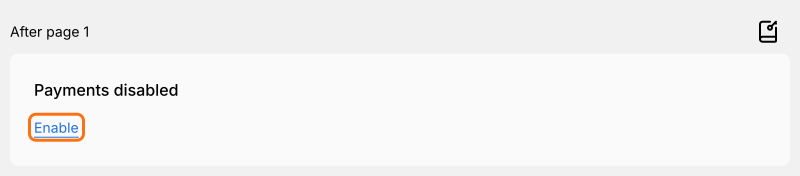
- Click on Enable under Payments disabled
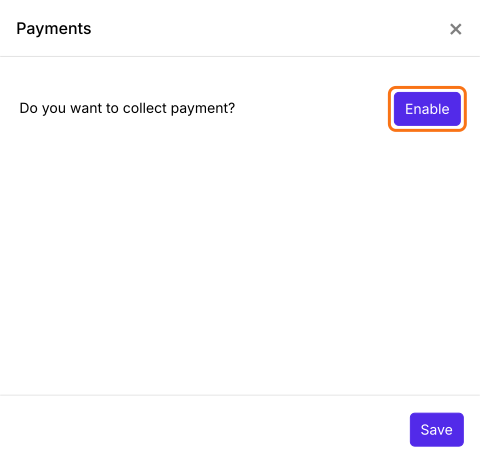
- Click the Enable button next to Do you want to collect payment
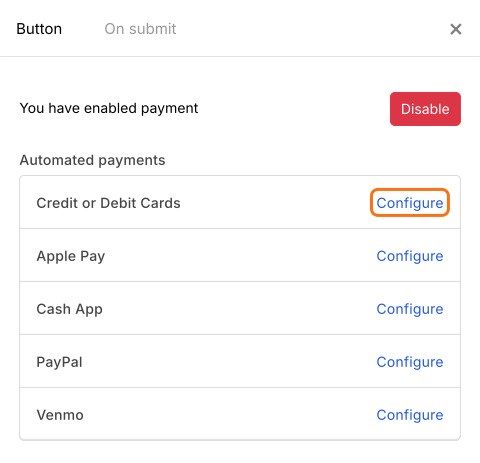
- Click Configure next to Credit or Debit Cards
- If you have a Stripe account, log in with your email address to connect it. Otherwise, create one by entering your email address


- Once you have created your Stripe account by entering your email address and password, you will have to enter your mobile number to enable two-step authentication

- You will receive an SMS with a 6 digit verification code. Enter this verification code to confirm your number

- Enter your business details such as registered business address and type of business

- Enter your personal details such as legal name of person, email address, date of birth and phone number

- Enter your business details such as industry, business website and product description

- Select the currency and enter your bank account details to receive payments

- Enter the statement descriptor and shortened descriptor for your business to be displayed on the customer statements

- Review your business and bank account details. Once you have verified it, click on the submit button.

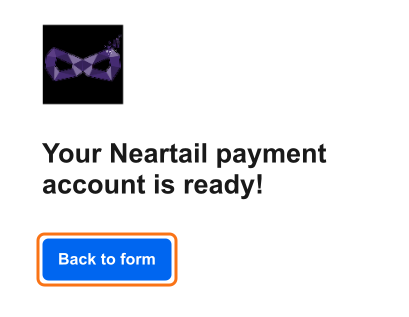
- Click Back to form
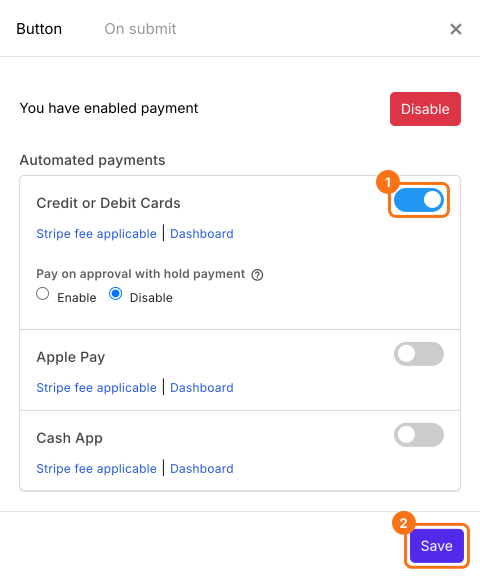
- Click on the toggle button next to Credit or Debit Cards and click on Save
- Click on the Configure key fields icon, the notebook in the last After page row

- Order Amount is already selected in the Get amount from list. Click on Save to complete the payment setup
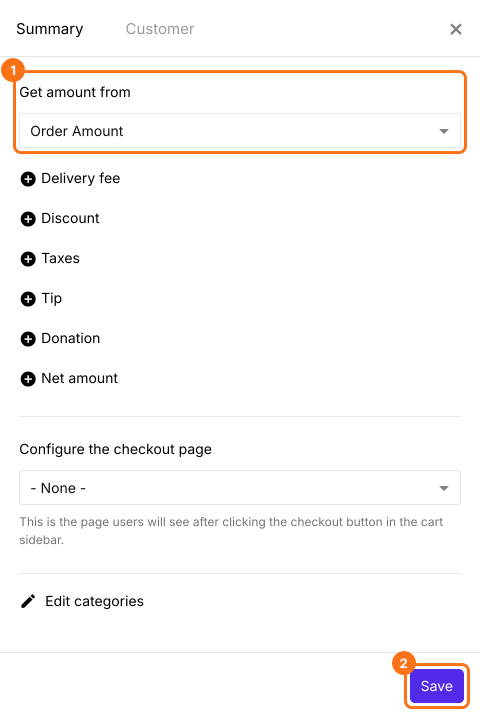
If your form has a Delivery Fee, Tax or Discount, click on Add price field and add a Net Amount too. It shows in the Get net amount from list by itself and your customers pay it.
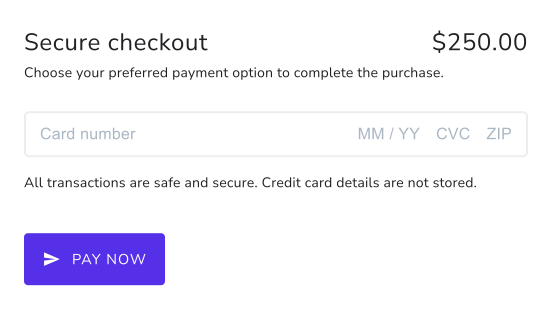
When a customer submits the form, they go to the payment page with the total already set as the amount. They enter their card details and click Pay now. If the payment goes through, they see the confirmation message from the On submit tab.
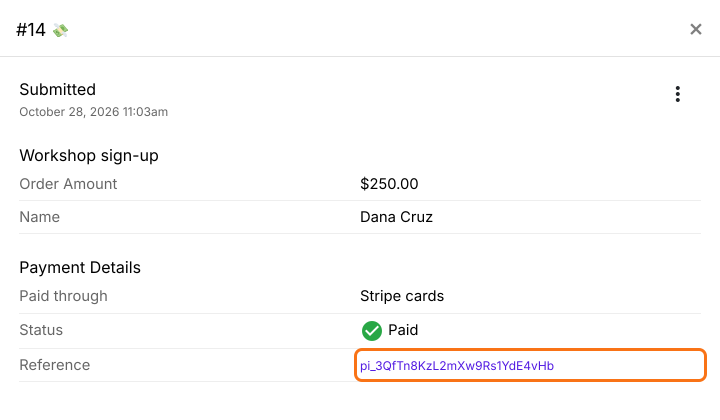
Each order shows its transaction id on the Orders page, so you can see who paid.
Summary
A Google Form can't take payment, and a link after submitting leaves you chasing money and matching payments to names. With Neartail, you connect Stripe and each customer pays by card as soon as they submit, with the amount taken from their order. Create your order form and complete the steps above. If you have any questions, write to support.
Last updated: