How to apply tiered discounts based on order amount?
A tiered discount, 10% off over $50 and 25% off over $100, needs the order total, and a Google Form has none. Each response has to be checked against your tiers and the right discount worked out by hand, then the customer told what they owe. Neartail adds the total to your Google Form, and one IFS formula on a Discount field holds all your tiers. As an order moves past each amount, the customer sees the bigger discount come off before they submit. To change a tier, you edit the one formula.
Create your order form and follow the steps below.
How to add a discount to your order form?
- On the page that opens, click Enter your form name, type your form's name and click Generate.
- Check the outline it suggests and click Proceed. Your form opens on the Edit tab.

Your form comes with products, an Order Amount question that adds up by itself and an Order Quantity question.
- Click on the Order Quantity question, then click Add price field in the toolbar on the right
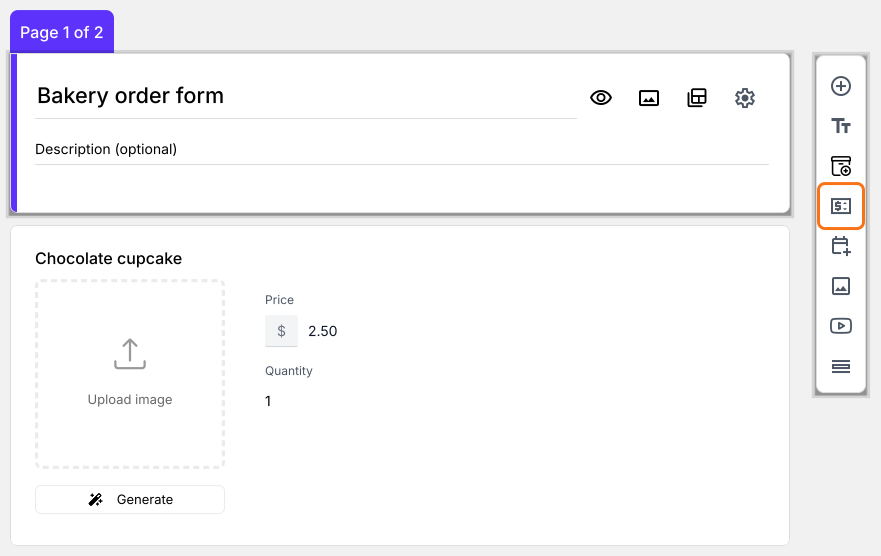
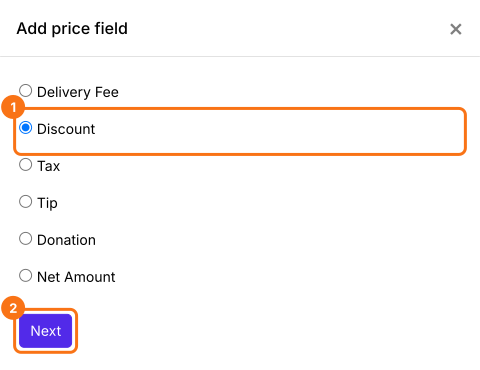
- Select Discount and click Next
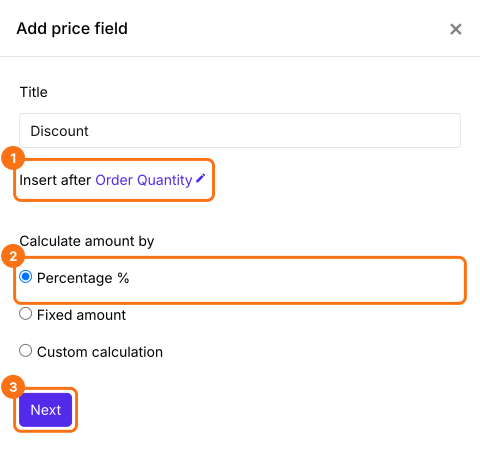
- Select Percentage % and click Next
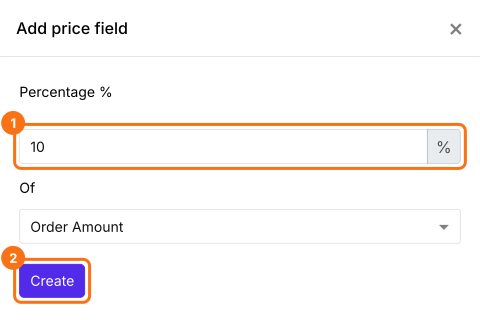
- Enter the percentage and click Create. You will write the formula in the next step
IFS function
IFS function evaluates multiple conditions and returns a value that corresponds to the first true condition.
Syntax: IFS(condition1, value1, condition2, value2, …)
where
- condition1 - The first condition to be evaluated.
- value1 - The returned value if condition1 is TRUE.
- condition2, value2, … - Additional conditions and values if the first one is evaluated to be false.
You can evaluate multiple conditions using the IFS function. For example,
IFS(Age > 60, "Old", Age > 18, "Adult", Age >=12, "Teenager", "Kid").
Apply tiered discounts
You can use the TOTAL() function to calculate the total order amount and apply a tiered discount. For example, if you would like to offer a 25% discount on orders of $100 or more and a 10% discount on orders of $50 or more, then you can use the following formula.
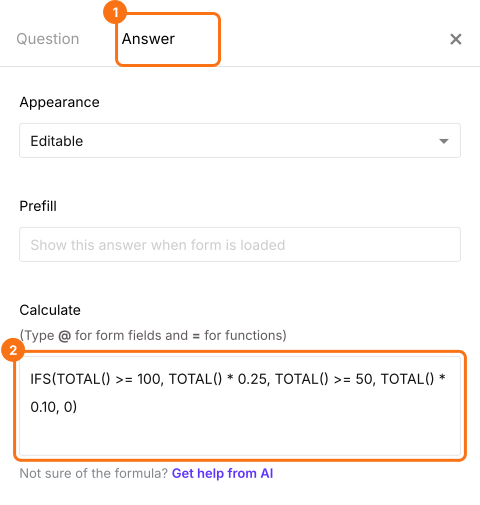
IFS(TOTAL() >= 100, TOTAL() * 0.25, TOTAL() >= 50, TOTAL() * 0.10, 0)
- In Field settings, select the Answer tab. Write the formula in the Calculate option as shown below and click Save
How to show the amount to be paid?
Add a Net Amount price field. It takes the Discount off by itself. Your customers pay the Net Amount.
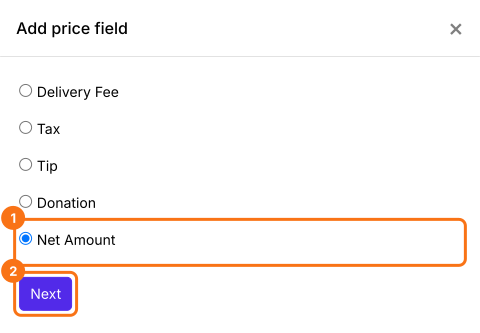
- Click on the Discount question, then click Add price field. Select Net Amount and click Next
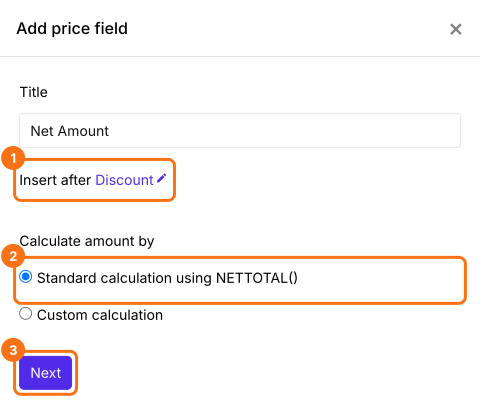
- Select Standard calculation using NETTOTAL() and click Next
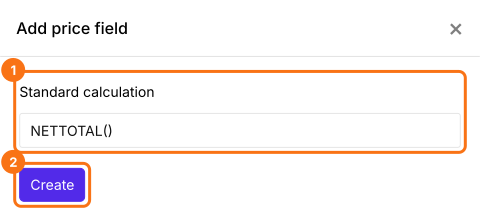
- Click Create
- Click Save
As an order moves up a tier, your customers see the Discount and the Net Amount change on the form. Your customers pay the Net Amount.
Summary
A Google Form can't apply a discount that depends on the order total. With Neartail, an IFS formula on the Discount field holds your tiers, and the right discount comes off on the form as each order grows. Create your order form and complete the steps above. If you have any questions, write to support.
Last updated: