How to send new order notifications to your team members?
"so he is able to get email responses of all orders submitted"- Google Docs Editors Community
Google Forms only emails the people who can edit the form, and only with a link. If others pack or deliver your orders, you either forward each order by hand or make them editors, who can then change your form. With Neartail, you add your staff's email addresses to Notify collaborators, and each of them gets an email with the order details when a customer orders. They don't need to edit the form to get it.
Create your order form and follow the steps below.
How to add your staff members?
- On the page that opens, click Enter your form name, type your form's name and click Generate.
- Check the outline it suggests and click Proceed. Your form opens on the Edit tab.

- Click on "Orders" tab

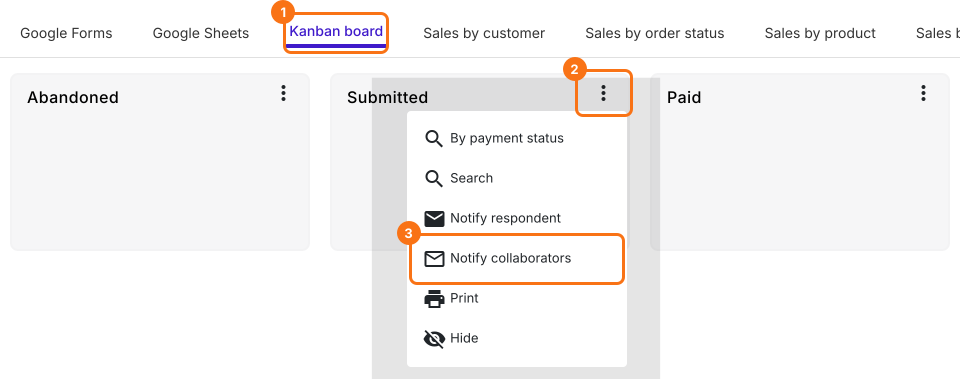
- Click Kanban board, click the ⋮ on Submitted and select Notify collaborators
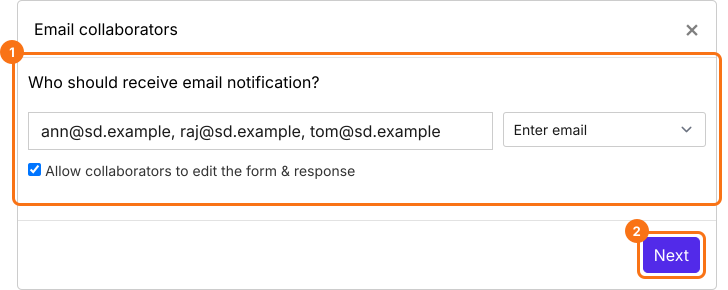
- You can enter a list of email addresses or an email group separated by commas in the Email collaborators step. Untick Allow collaborators to edit the form & response if they should only read the orders. Click on the Next button
- Your subject and message are already filled in, so click on the Next button twice
- Click on "Click here", submit a test response and click on the YES button
When a customer places an order, your staff members will receive an email with the order details.
Summary
Google Forms doesn't send order details to people who aren't editors. With Neartail, you add your staff's addresses and each of them gets the order details by email, without access to change the form. Create your order form and complete the steps above.
Last updated: