How to send order confirmation emails to customers?
"receive a google form email receipt of just your chosen items on a form"- Google Docs Editors Community
A Google Form can send the customer a copy of their answers, but you can't write the email. There's no room for a thank you, a pickup time or how to pay, and the copy lists every question on the form rather than just what they ordered. With Neartail, you write your own confirmation email. Each customer gets it when they place an order, with their order details and any answers you choose, such as their order number or the amount to pay.
Let's start. Create your order form and follow the steps below.
How to set up order confirmation emails?
- On the page that opens, click Enter your form name, type your form's name and click Generate.
- Check the outline it suggests and click Proceed. Your form opens on the Edit tab.

- Click on "Orders" tab

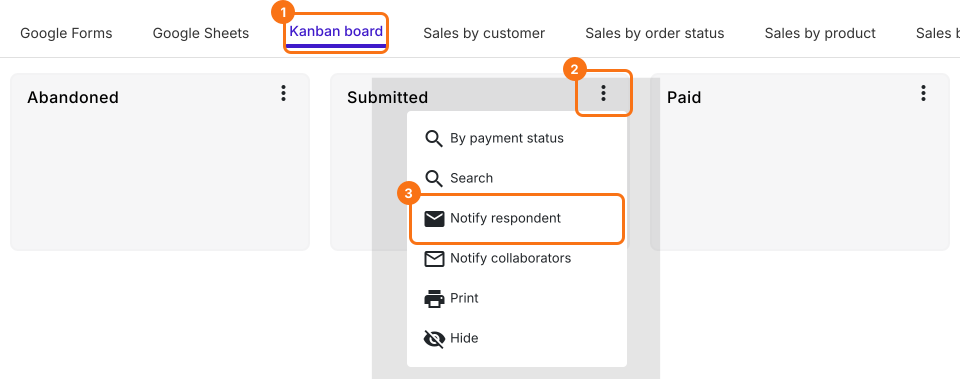
- Click Kanban board, click the ⋮ on Submitted and select Notify respondent
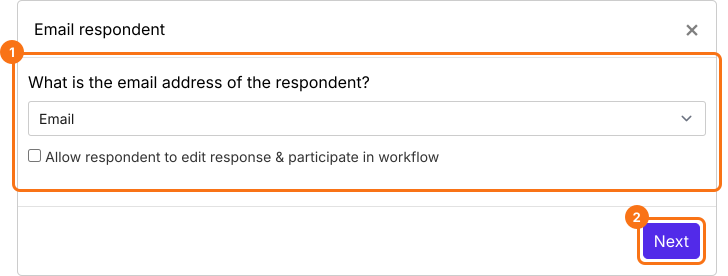
- Your form's Email question is already selected in the dropdown list. Click on the Next button
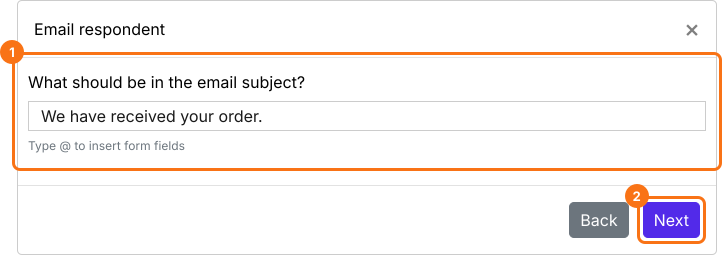
- Configure the subject line for this notification email. You can enter a simple static subject line as shown in the screenshot below or you can use the form fields such as order id, order amount etc to personalize the subject for each respondent. Then click on the Next button.
- By default, all the answers will be included in the email. You can customize this message to include payment or delivery instructions
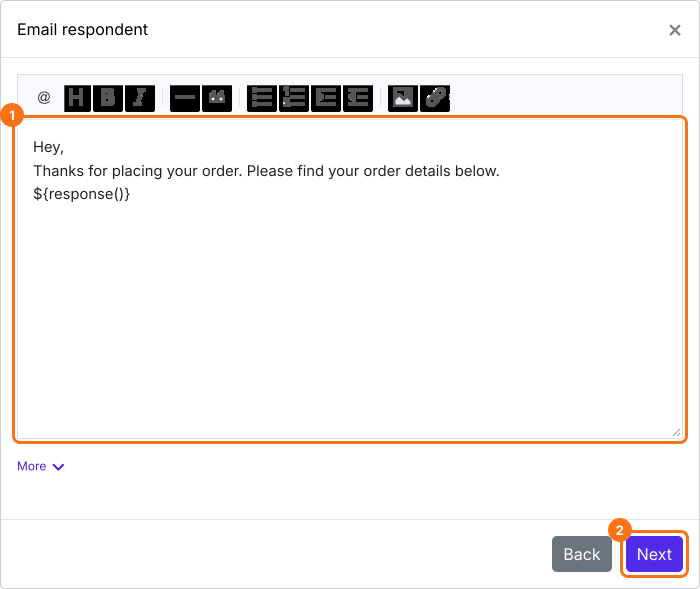
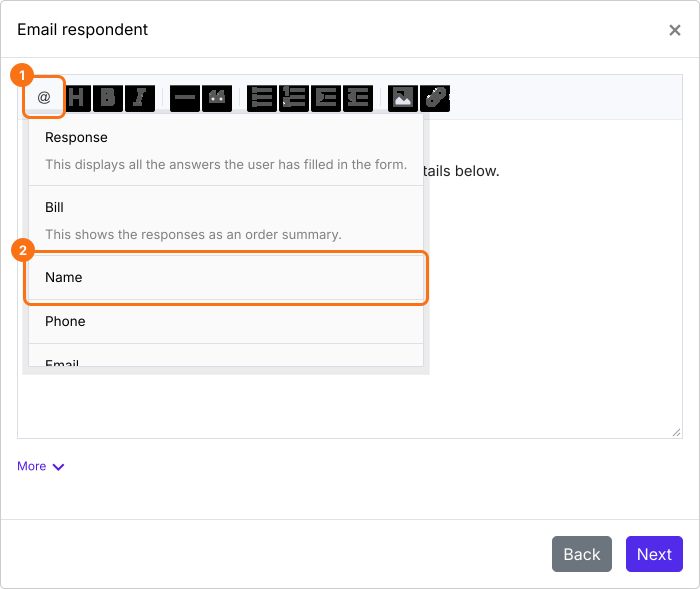
- To personalize the message using the form responses, you can click on the @ icon and select the required field from the list to include it in the message. It goes in at your cursor and shows as a code such as ${entry1280768093}, which the email replaces with the answer. Once you have customized the message, click on the Next button
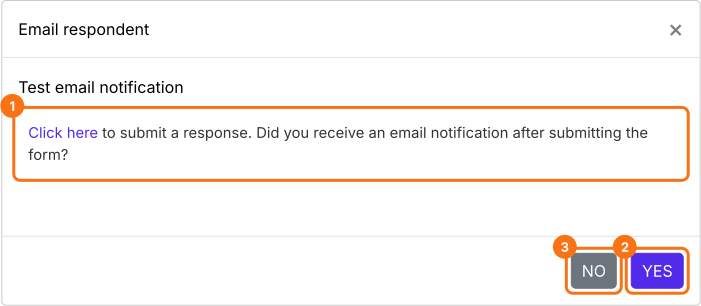
- Click on "Click here" and submit a test response, with your own email address in the form, to check if the email notifications are working. If it works, click on the YES button. Otherwise, click on the NO button.
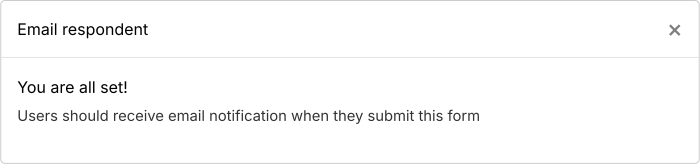
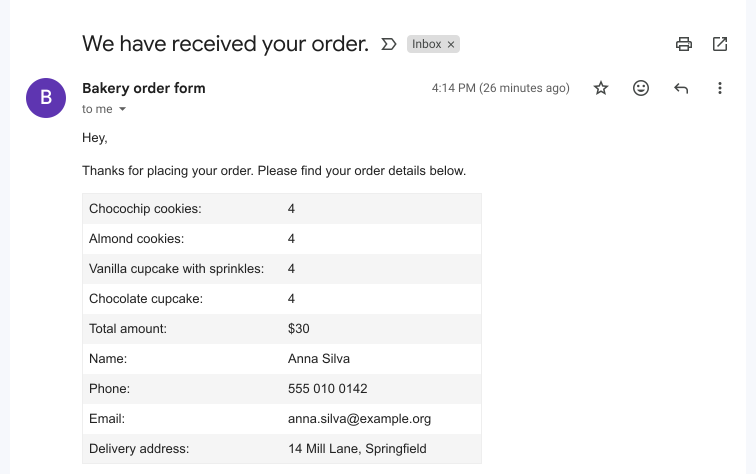
If the test is successful, users will receive the confirmation email when they submit the form.
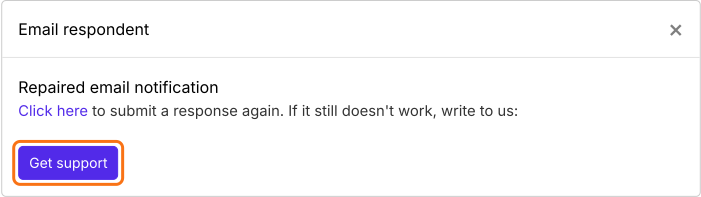
If the test email notification doesn't work, you should click on the NO button and it will automatically try to fix the email trigger. You can submit another test response to check if the email notification works. If you still face any issues, you can get in touch with our support team.
Each customer gets your message with their order details when they place an order.
Summary
Google Forms can only send a copy of the answers. With Neartail, you write your own confirmation email, with the order details and your payment or delivery instructions, and each customer gets it when they order. Create your order form and complete the steps above.
Last updated: