How to accept online payments using Yoco?
Sellers in South Africa who take card payments with Yoco want customers to pay when they order. Google Forms can't take a card or connect to Yoco, so you send each customer a payment link after the order and check later who has paid. With Neartail, you connect Yoco to your form with your Yoco keys and customers pay by card when they place the order, with no link to send afterwards. The form carries your branding instead of Google's, so customers can see who they're paying.
Below are two ways to take Yoco card payments with a Google Form, and where the first one falls short.
1. Send a Yoco payment link after each order
Take the order in Google Forms, then make a payment link in Yoco and send it to the customer. That's one link per order, sent by hand, and you check later which ones were paid.
2. Take card payments in the form with Neartail
Neartail connects Yoco to your Google Form, so customers pay by card as part of placing the order. You need your Yoco keys first.
Get your Yoco keys
Sign in to your Yoco business portal, open the Sales tab and click the Payment gateway tile, or go here. Use the live public key and secret key to take real payments.
- Click Create your form, then Enter your form name. Type a name and click Generate.
- Check the outline it suggests and click Proceed. Your form opens on the Edit tab.

- When it asks "Do you want to collect payment on form submit?", click Yes.
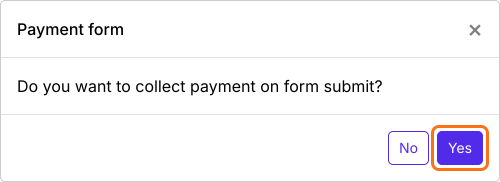
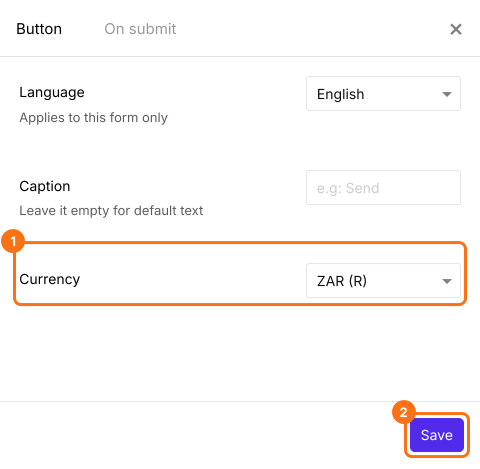
- Yoco is listed only for forms in ZAR. If your form is in another currency, close the Payments panel, click the gear icon in the After payment row, the last row above the Submit button, select ZAR in Currency and click Save. Then click Edit in the Payments row.
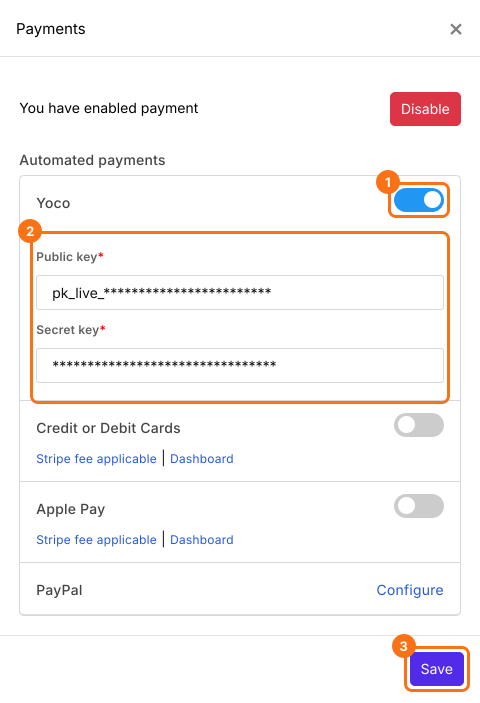
- Under Automated payments, turn on Yoco, enter your public key and secret key and click Save.
- Click a product card to change its title or price. To remove a product you don't sell, click the delete icon at the bottom of its card.
Click Preview and submit the form to see the payment step your customers get.
Summary
Google Forms can't take a card or connect to Yoco, so each order needs a payment link sent by hand. With Neartail, you connect Yoco with your public and secret key and customers pay by card when they place the order. Create your form and complete the steps above. If you have any questions, write to support.
Last updated: