How to accept PayPal payments in Google Forms?
"How do you embed the PayPal button html code into the google form?"- Google Docs Editors Community
PayPal gives you code for a payment button, but Google Forms doesn't accept HTML, so the button has nowhere to go. You end up sharing a paypal.me link and checking PayPal later to see who has paid. With Neartail, PayPal is part of the form. People see the total when they submit and click PAY, which opens your paypal.me link with the amount filled in. The form carries your branding, and the responses are still collected on your Google Forms.
Below are three ways to take PayPal payments with a Google Form, and where each one falls short.
1. Put your paypal.me link in the form
Add your paypal.me link to the form's description and ask people to pay before they submit. They type the amount themselves, and you compare PayPal with the responses to see who paid.
2. Send them to PayPal after they submit
In Google Forms, click Settings, open Presentation and put your paypal.me link in the Confirmation message. People see it once their response is in, so paying is up to them. Owners on Google's forum also say the link doesn't open PayPal when the form is embedded in a Google Site.
3. Take PayPal payments in the form with Neartail
Neartail adds a payment step to your Google Form. When people click Submit, they see the total, pay with PayPal and click Mark as Paid.
- Click Create your form, then Enter your form name. Type a name and click Generate.
- Check the outline it suggests and click Proceed. Your form opens on the Edit tab.

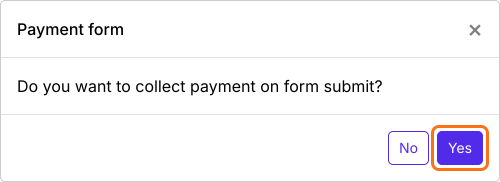
- When it asks "Do you want to collect payment on form submit?", click Yes.
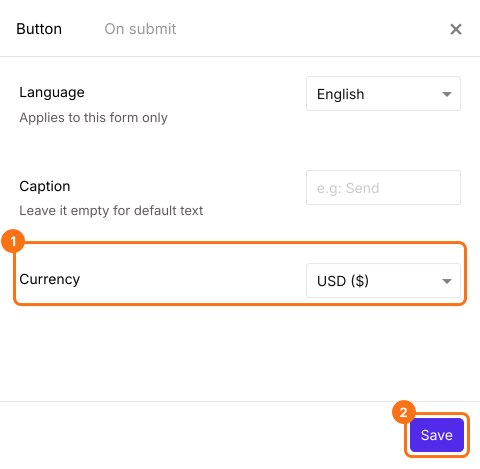
- If PayPal isn't under Manual payments, your form is in a currency PayPal doesn't take. Close the Payments panel, click the gear icon in the After payment row, the last row above the Submit button, select the currency you charge in and click Save. Then click Edit in the Payments row.
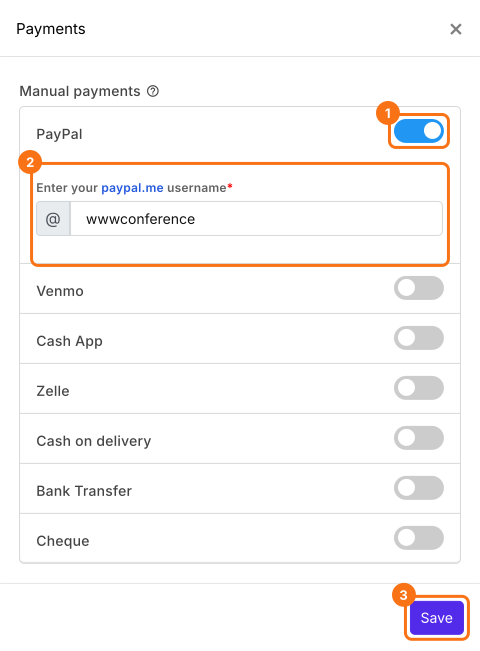
- Under Manual payments, turn on PayPal, enter your paypal.me username and click Save.
Check the amount
The amount people pay is the form's Order Amount, which adds up the products each person picks. To charge one fee to everyone instead, read How to collect a fixed amount.
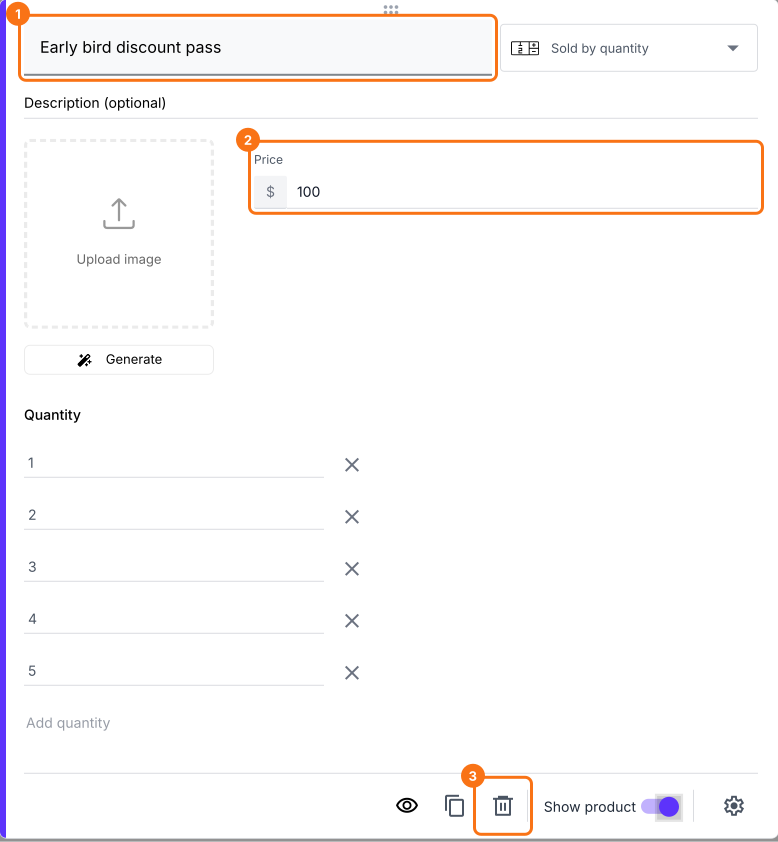
- Click a product card to change its title or price. To remove a product you don't sell, click the delete icon at the bottom of its card.
- Click Preview and submit the form to try it.

When someone clicks Submit, they see the Total Amount. They click PAY, which opens your paypal.me link with the amount, and then click Mark as Paid. If you turned on more than one way to pay, they choose one and click Proceed to payment first. To check each payment, read How to see who has paid in Google Forms?
Summary
Google Forms can't hold a PayPal button, so a paypal.me link in the form or after submit leaves people typing the amount and you checking PayPal by hand. With Neartail, people see the total when they submit and pay it with PayPal in the same step. Create your form and complete the steps above. If you have any questions, write to support.
Last updated: