How to accept Cash App payments in Google Forms?
You take sign-ups or ticket orders in Google Forms and people pay you on Cash App. Google Forms has no payment step. You can type your $Cashtag into the form, but the form can't work out what each person owes, so people send the wrong amount and you match payments to responses by hand. With Neartail, paying is part of the form. When people submit, they see the total and scan a QR code to pay you on Cash App. The money goes straight to your Cash App, so there's no commission on it.
Below are three ways to take Cash App payments with a Google Form, and where each one falls short.
1. Put your $Cashtag in the form
In Google Forms, add your $Cashtag to the form's description and a question asking how much they sent. The form can't work out what each person owes, so the amount is whatever they type, and you match each payment in Cash App to a response by hand. If you ask for a screenshot of the payment with a file upload question, everyone has to sign in with a Google account to fill the form.
2. Link to Cash App after they submit
In Google Forms, click Settings, open Presentation and put the link to your Cash App page, cash.app/ followed by your $Cashtag, in the Confirmation message. People see it once they've submitted. By then their response is in whether they pay or not, and the link carries no amount.
3. Take Cash App payments in the form with Neartail
Neartail adds a payment step to your Google Form. When people click Submit, they see the total and a QR code, pay you in Cash App and click Mark as Paid, so each payment stays with its response.
- Click Create your form, then Enter your form name. Type a name and click Generate.
- Check the outline it suggests and click Proceed. Your form opens on the Edit tab.

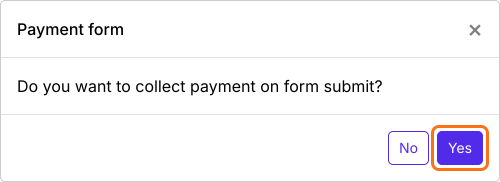
- When it asks "Do you want to collect payment on form submit?", click Yes.
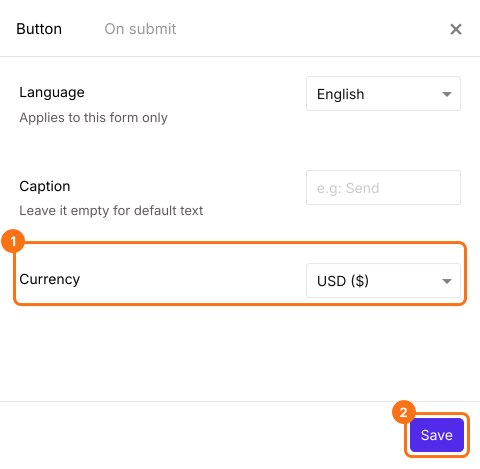
- Cash App is listed only for forms in USD. If your form is in another currency, close the Payments panel, click the gear icon in the After payment row, the last row above the Submit button, select USD in Currency and click Save. Then click Edit in the Payments row.
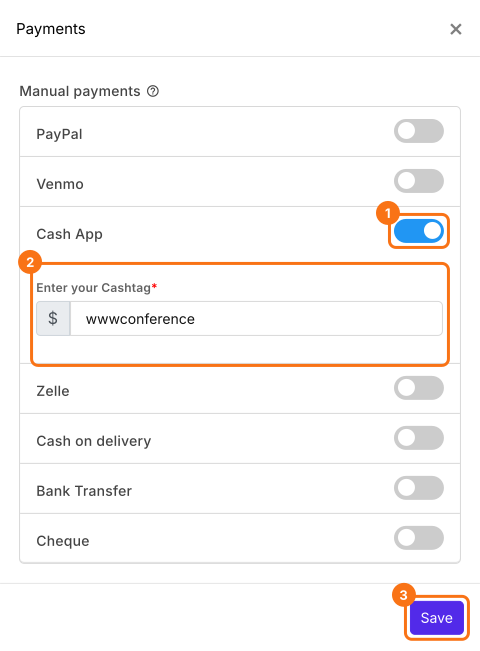
- Under Manual payments, turn on Cash App, enter your $Cashtag and click Save.
Check the amount
The amount people pay is the form's Order Amount, which adds up the products each person picks. To charge one fee to everyone instead, read How to collect a fixed amount.
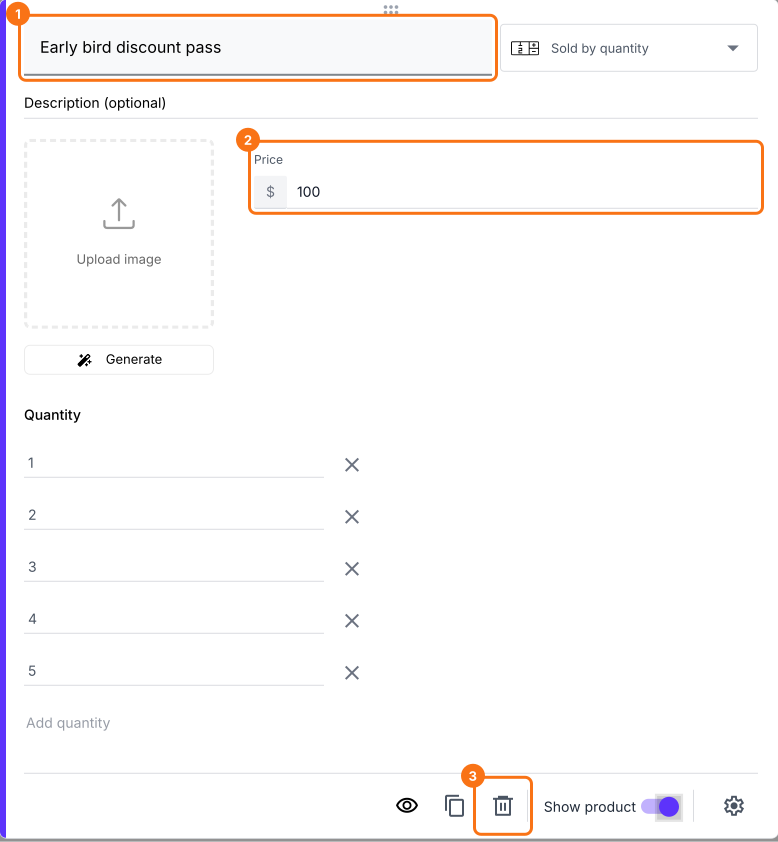
- Click a product card to change its title or price. To remove a product you don't sell, click the delete icon at the bottom of its card.
- Click Preview and submit the form to try it.

When someone clicks Submit, they see the Total Amount and a QR code. They scan it to pay you in Cash App and click Mark as Paid. If you turned on more than one way to pay, they choose one and click Proceed to payment first. To check each payment, read How to see who has paid in Google Forms?
Summary
Google Forms has no payment step, so a $Cashtag in the form or a link after submit leaves people guessing the amount and you matching payments by hand. With Neartail, people see the total when they submit and pay you on Cash App with a QR code, and each payment stays with its response. Create your form and complete the steps above. If you have any questions, write to support.
Last updated: